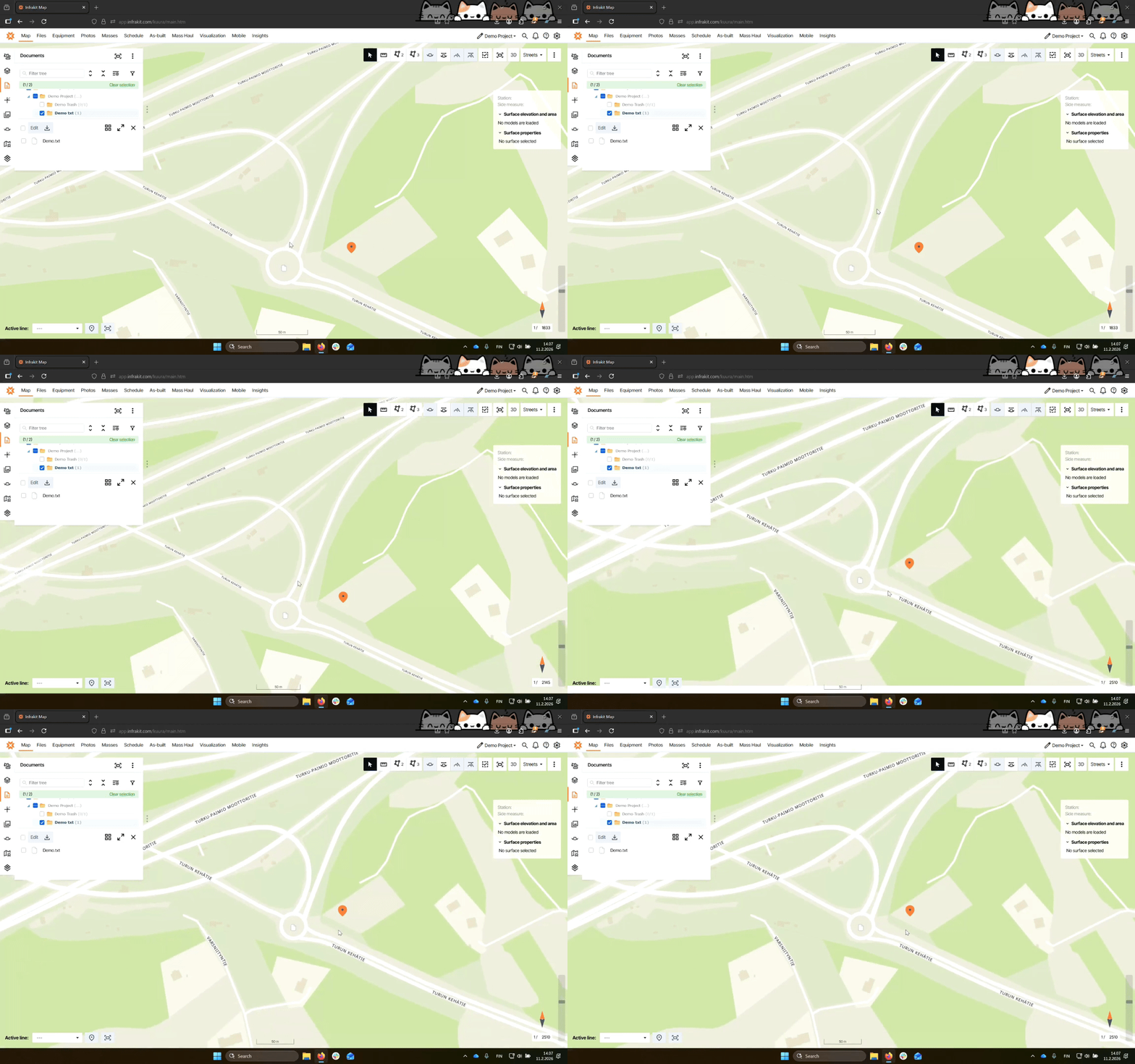

Let's do it together!
Step 1: Create or Upload
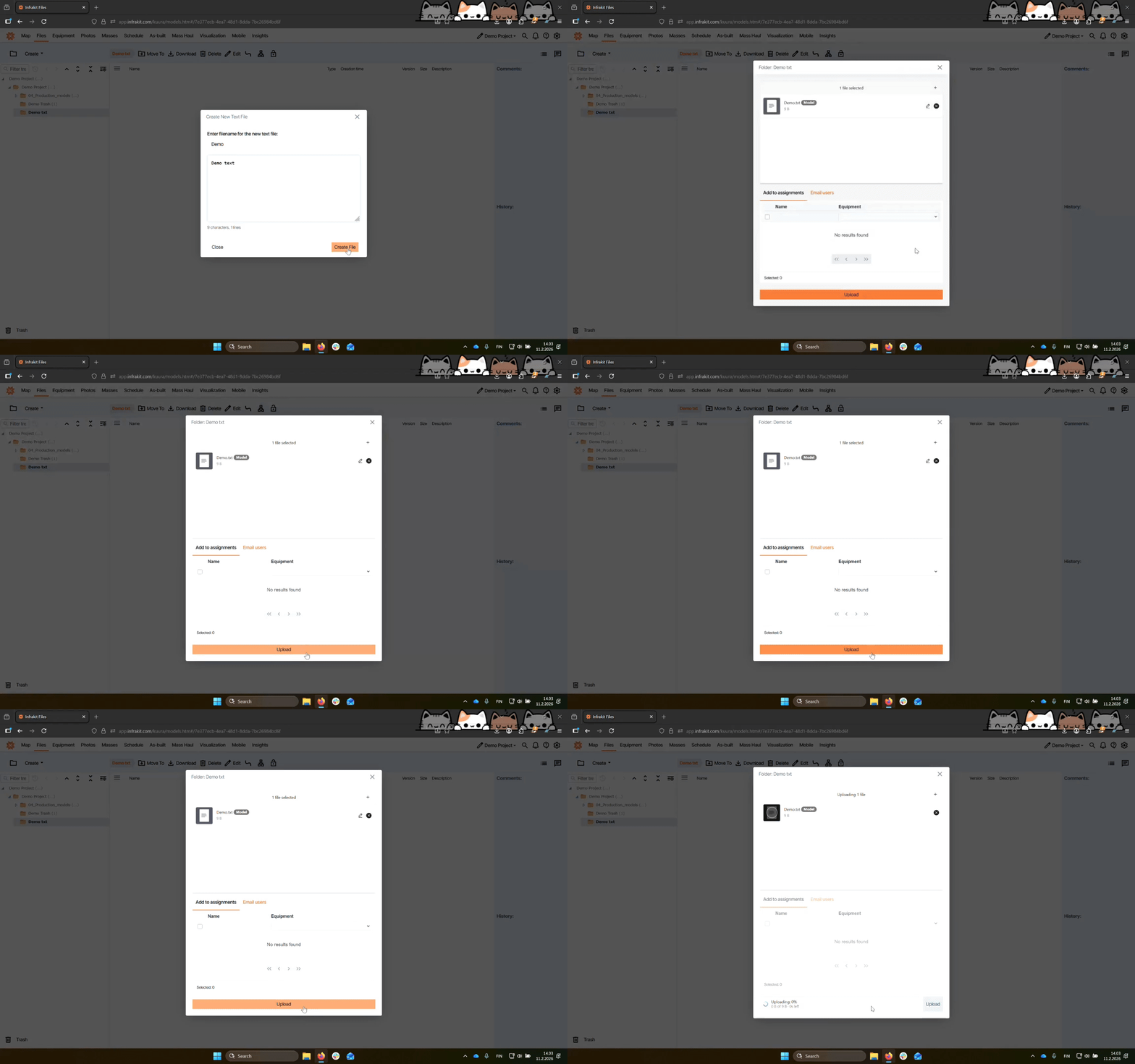
Create a text file or upload an existing one from your computer.
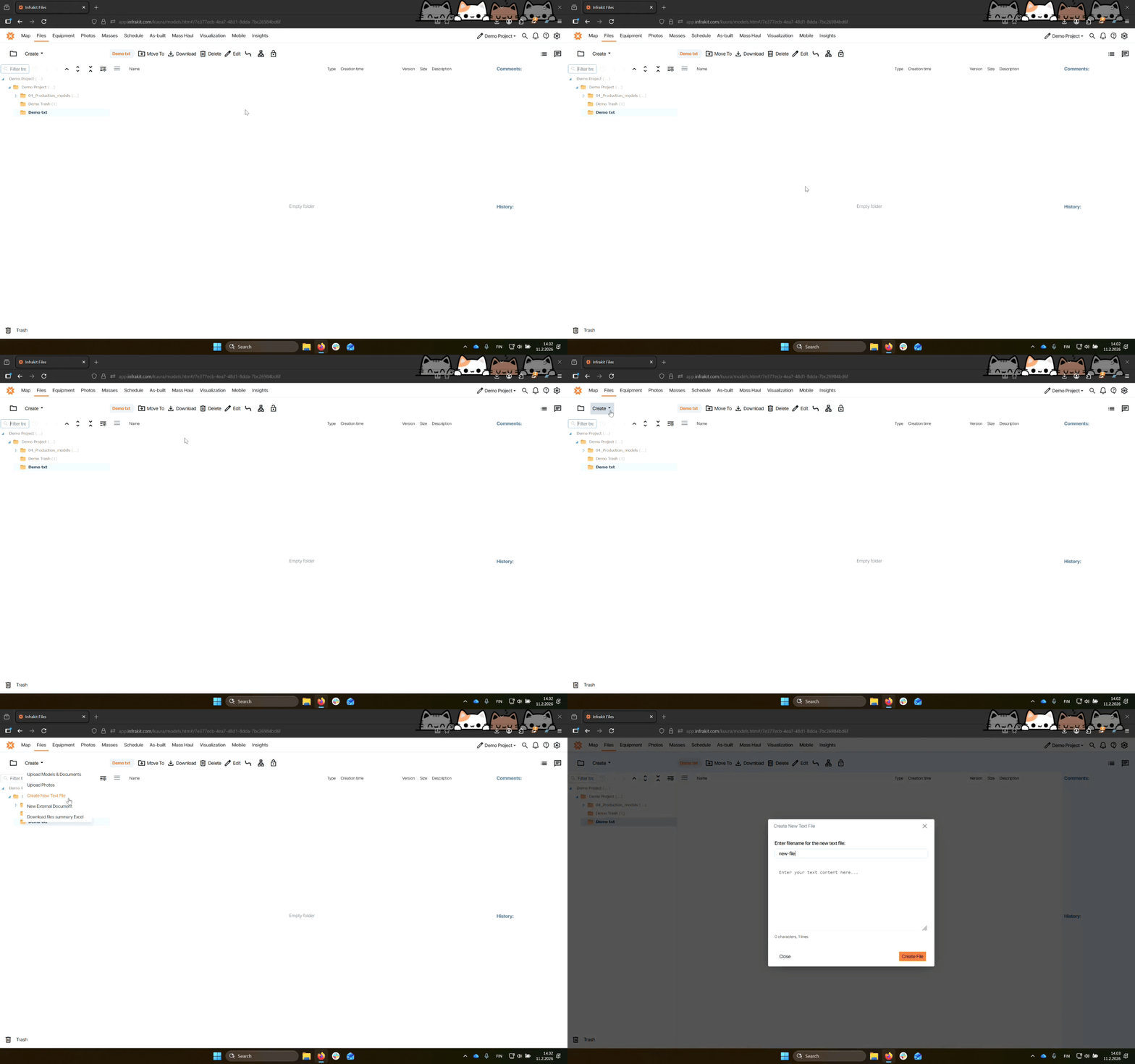
Step 2: Create New File
From the files page you can create a new txt file. To do this click the Create button, then select Create new text file. Choose a name for your file.
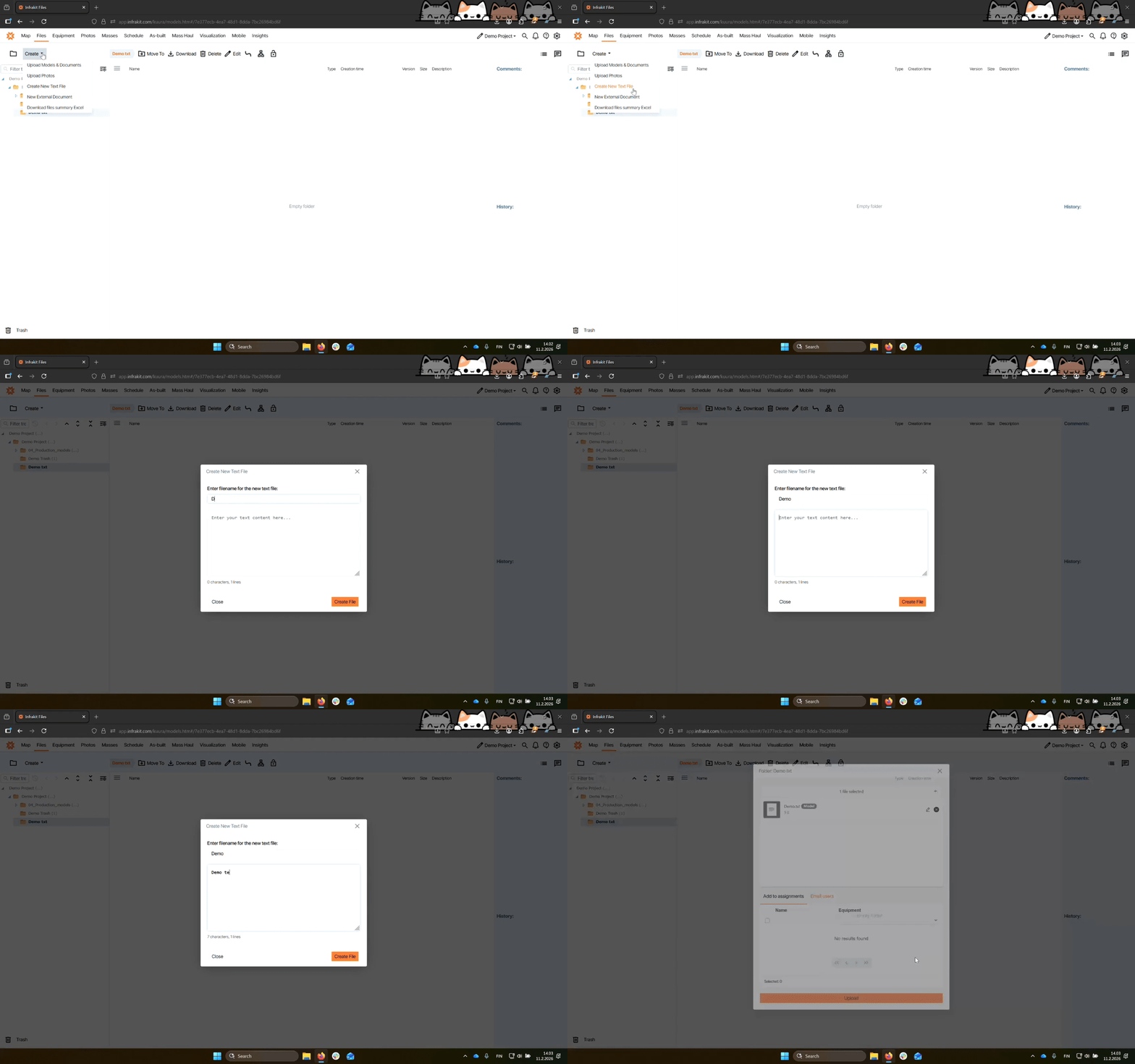
Step 3: Enter Text
Input your text into the editor. After entering your text, create the file.
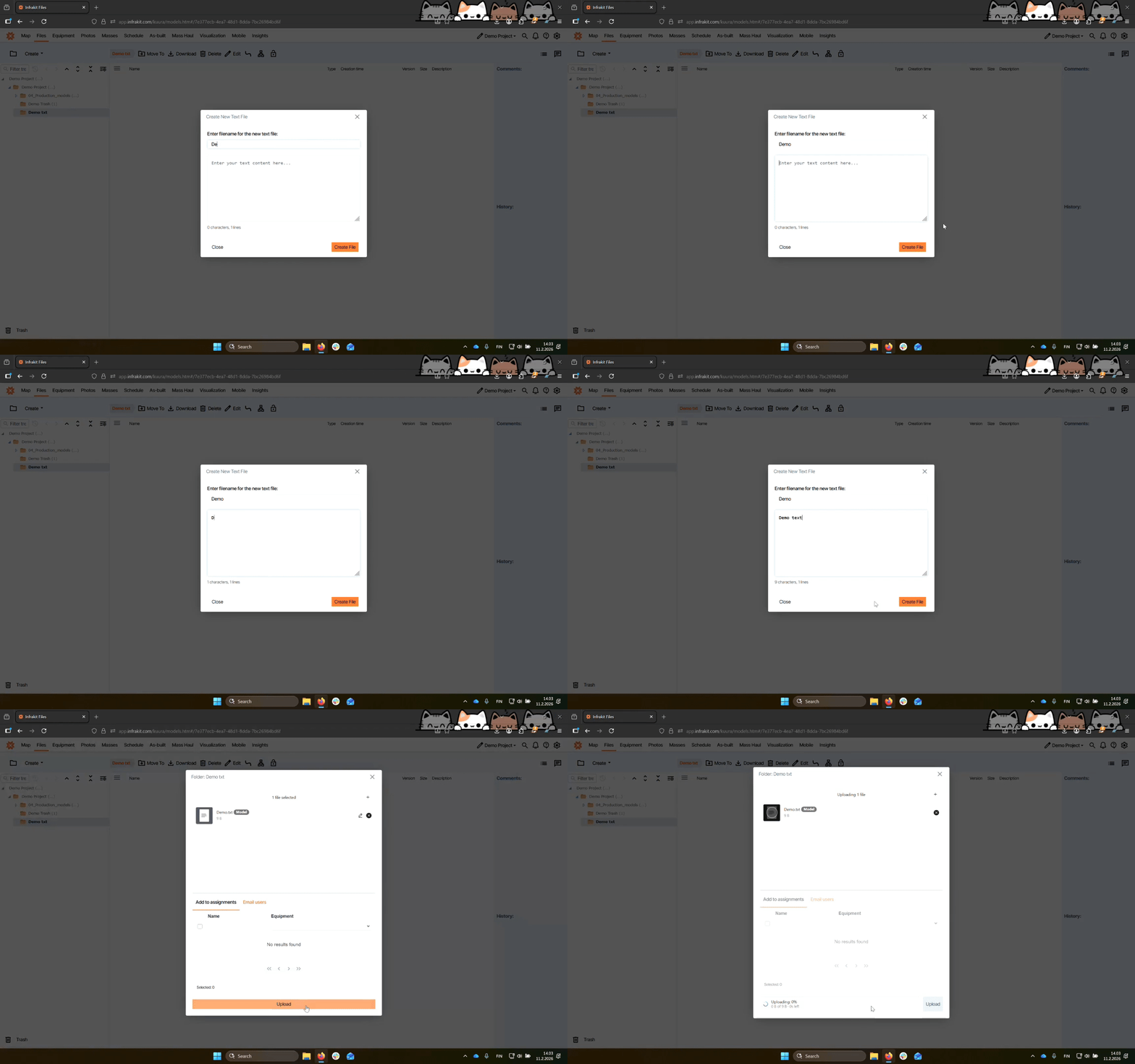
Step 4: Upload File
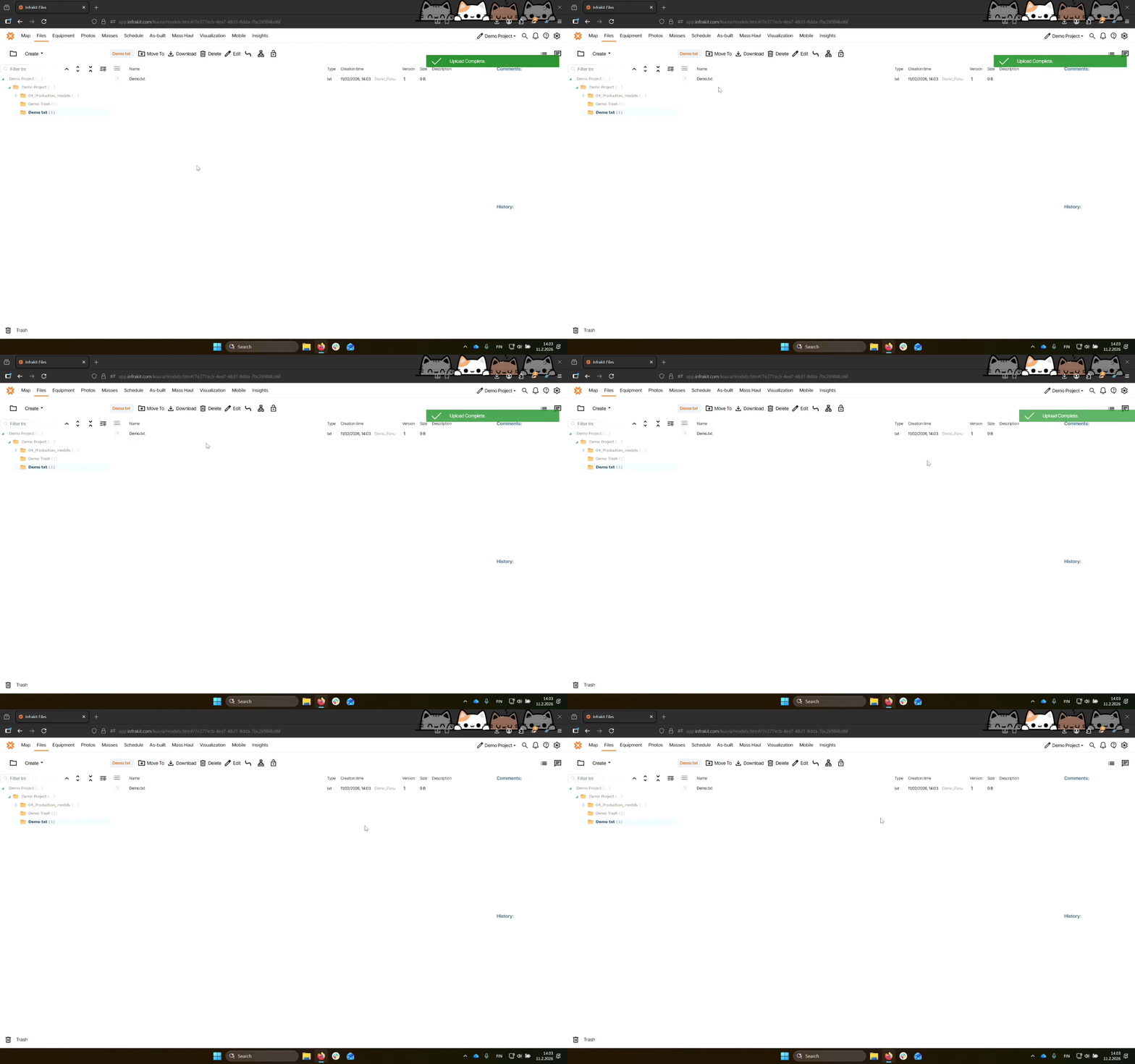
After creating the file, you can upload it and view it in the demo section.
Step 5: View File Details
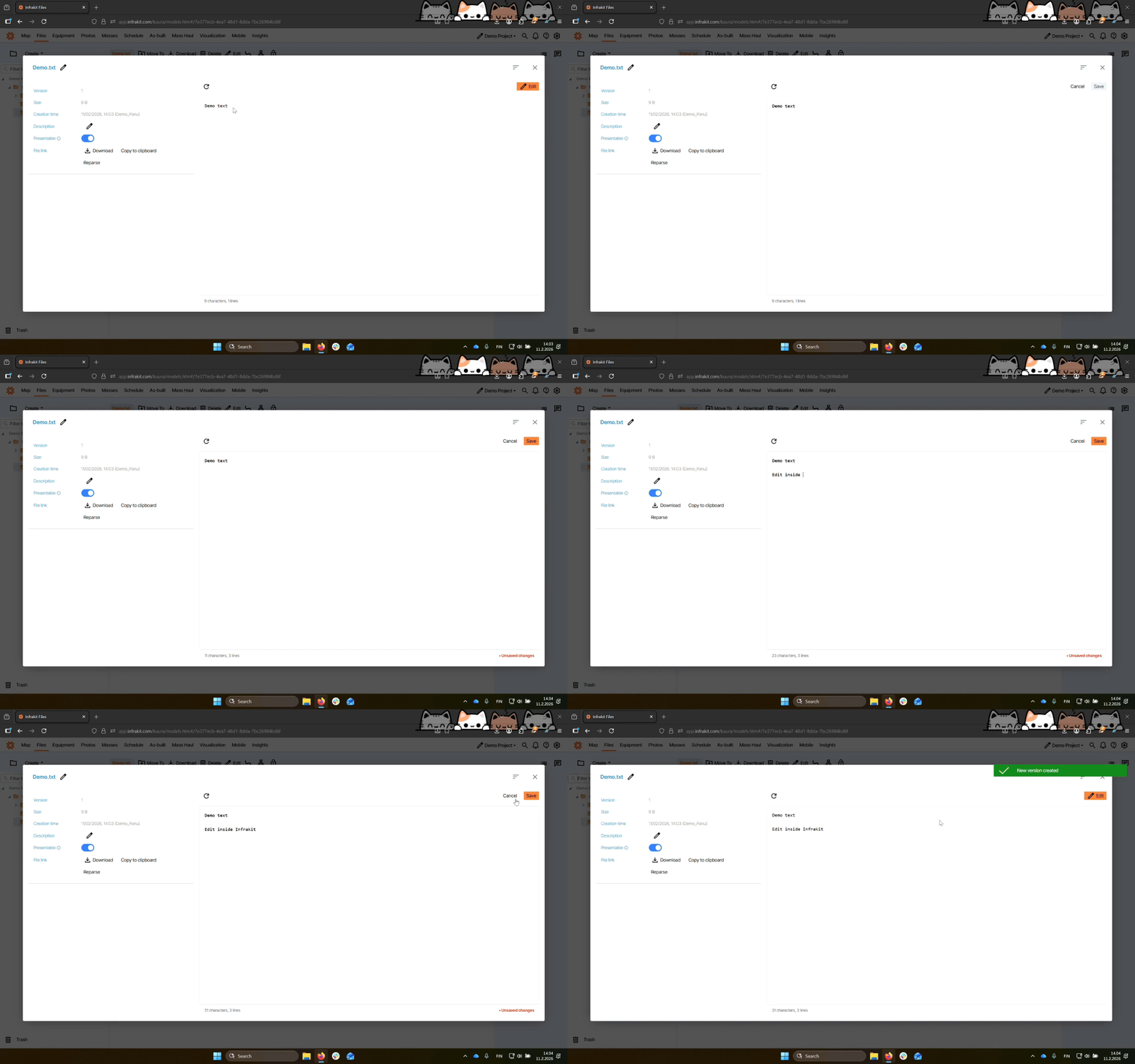
Click on the file to see detailed information and access editing options.
Step 6: Edit File
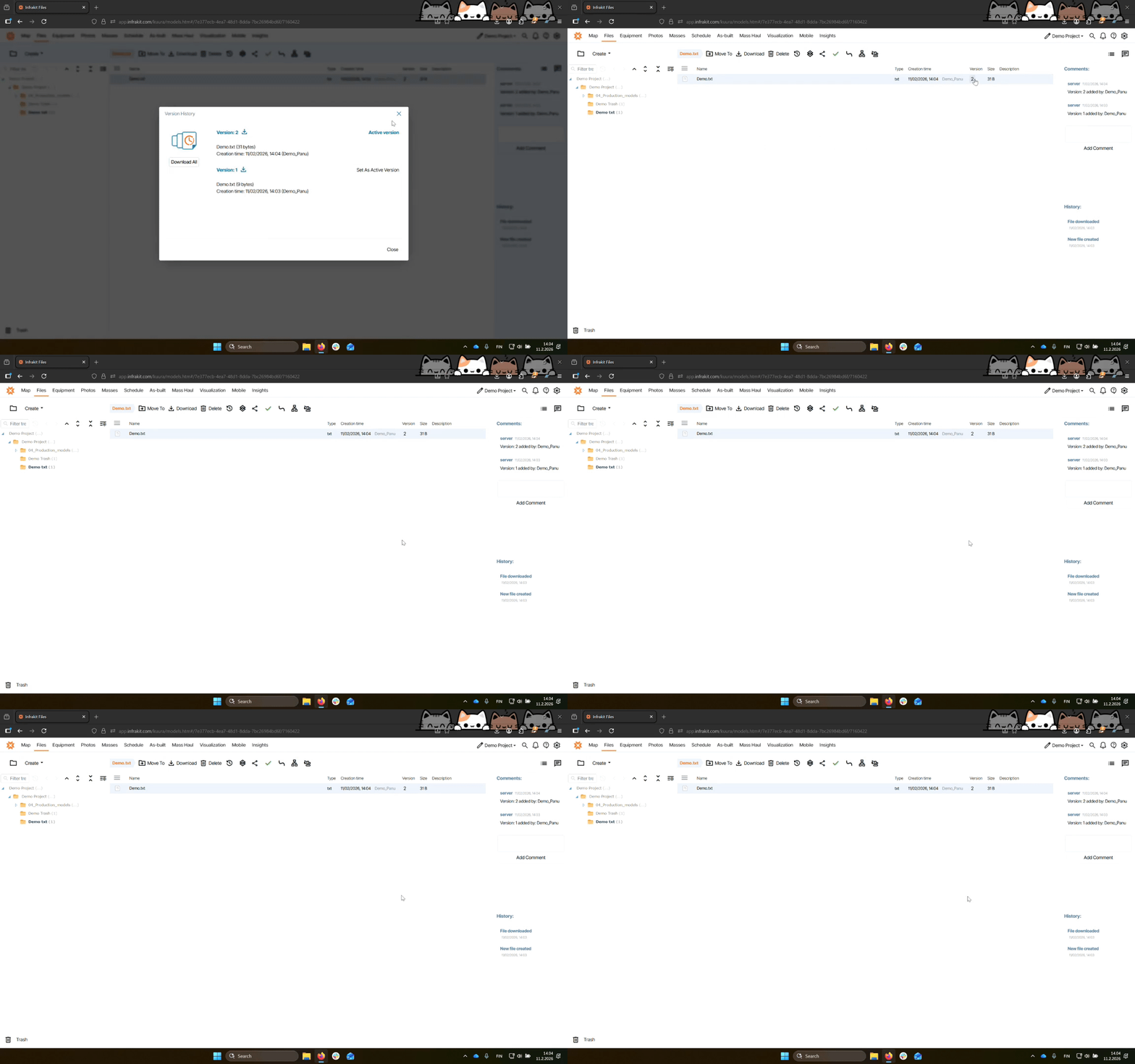
Edit the text file within Infrakit. Save changes to create a new version of the file.
Step 7: Version Management
All edits are saved, and you can revert to an older version if needed.
Step 8: Access from Map Page
Navigate to the map page to locate your text file within its folder.
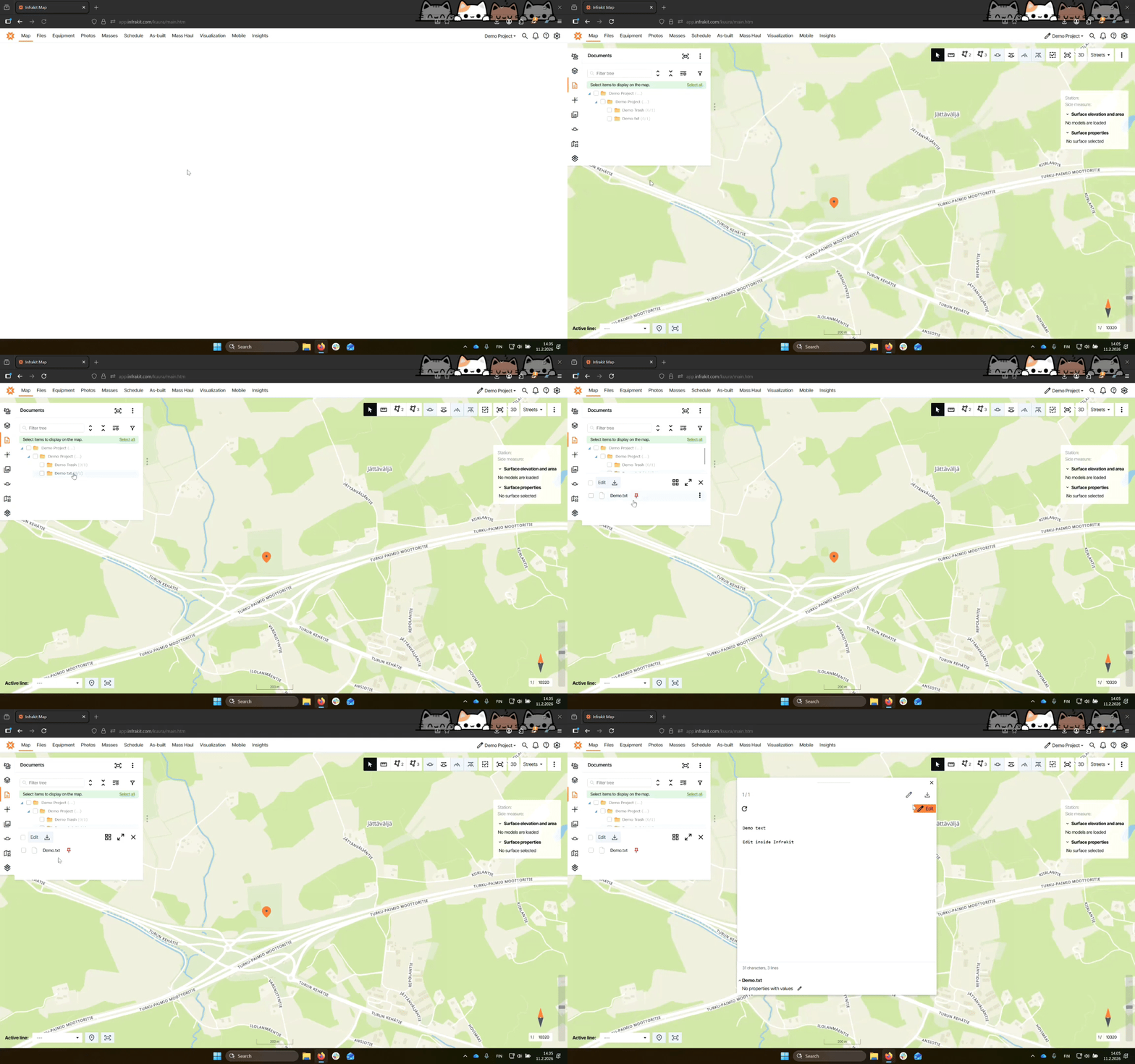
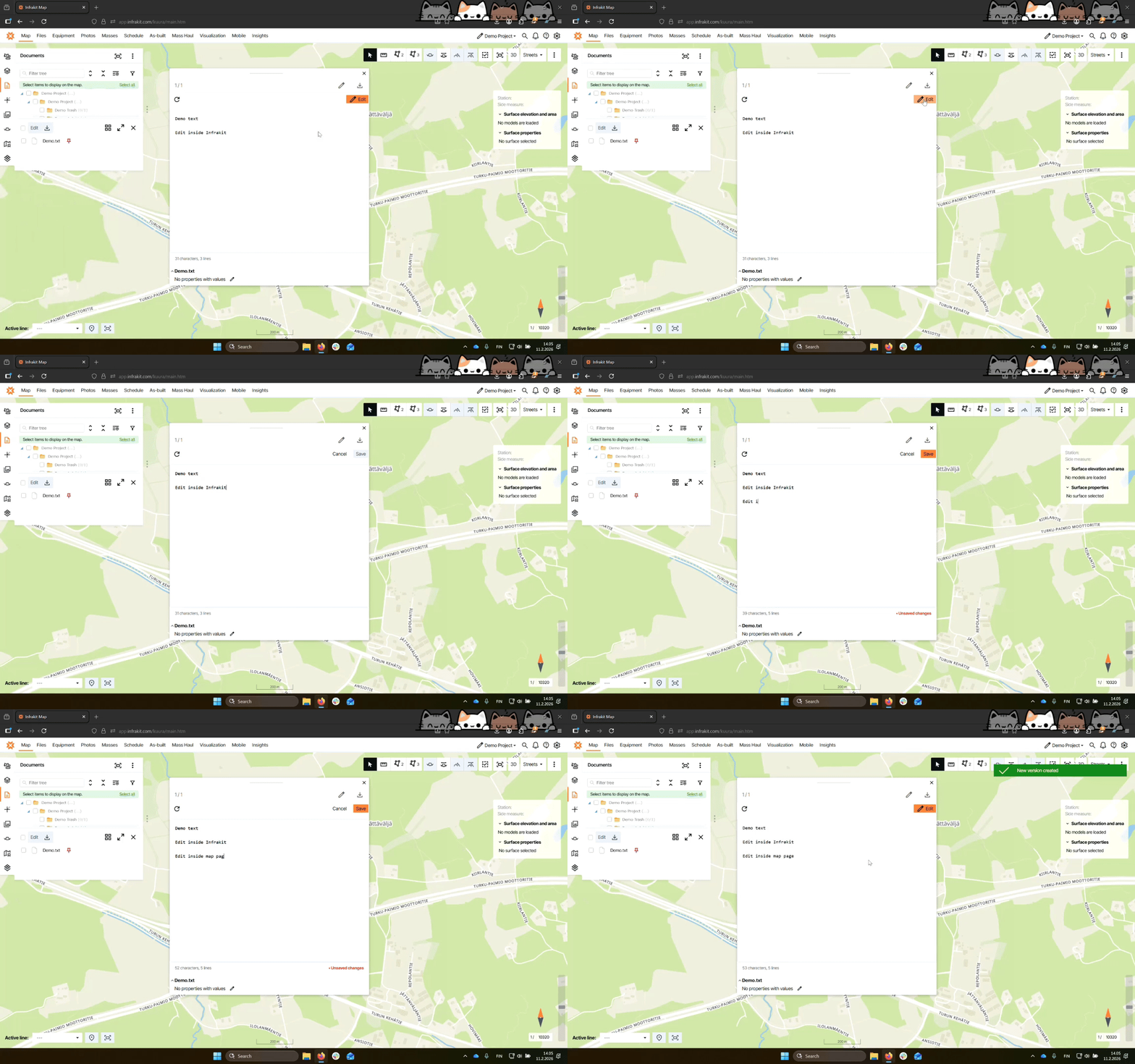
Step 9: Edit from Map page
Click the file to open the edit window. Use the orange button to edit the content.
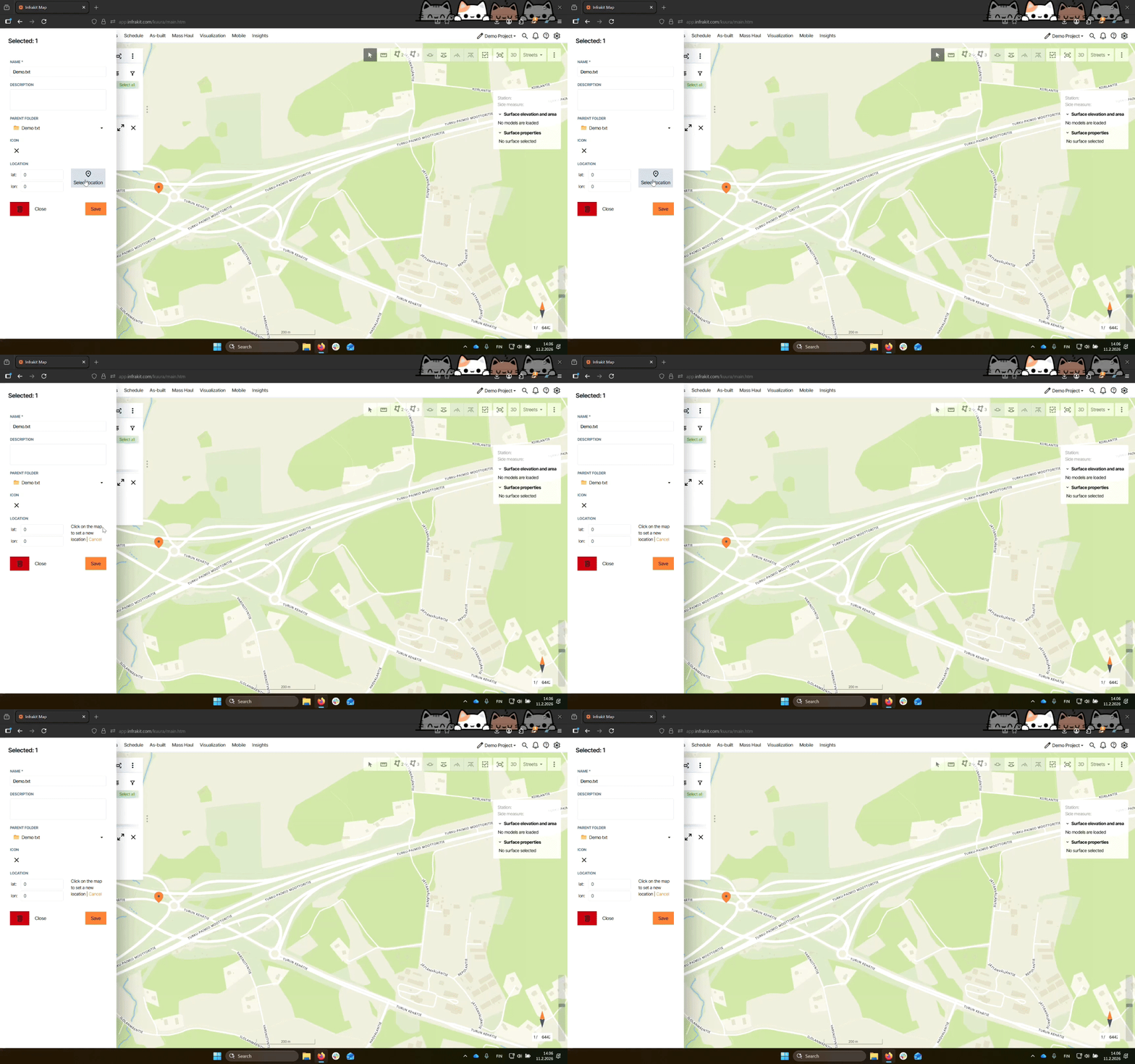
Step 10: Set Location
Click Select Location from file properties to assign a position on the map, and save your changes.
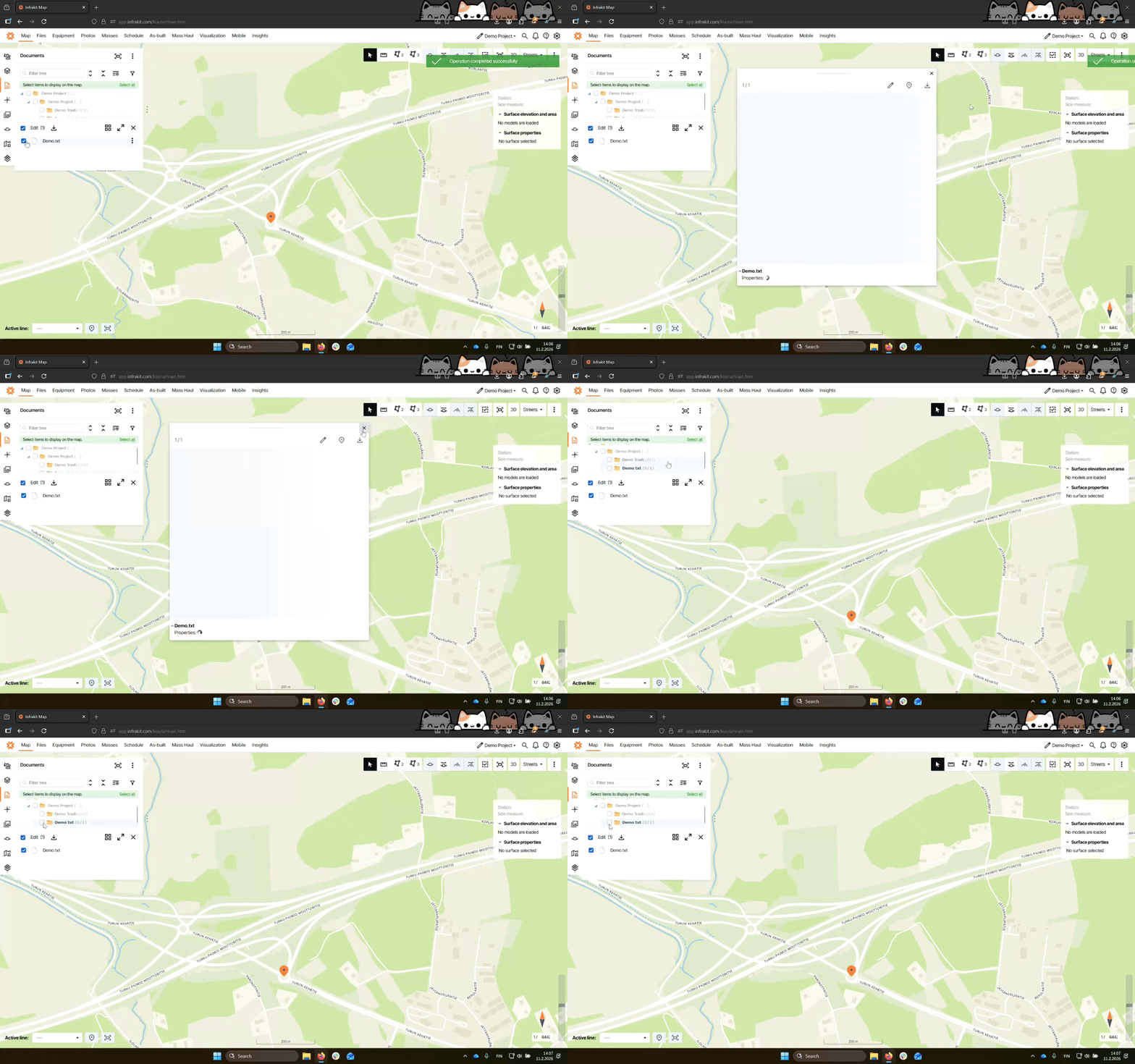
Step 11: Display on Map
Check the box next to the folder name to display the file on the map.
Step 12: Mobile Access
All editing features are also available in the Infrakit Field mobile application.