
Let's do it together!
Step 1: Upload file
Upload your Tek file to the Files page in Infrakit.
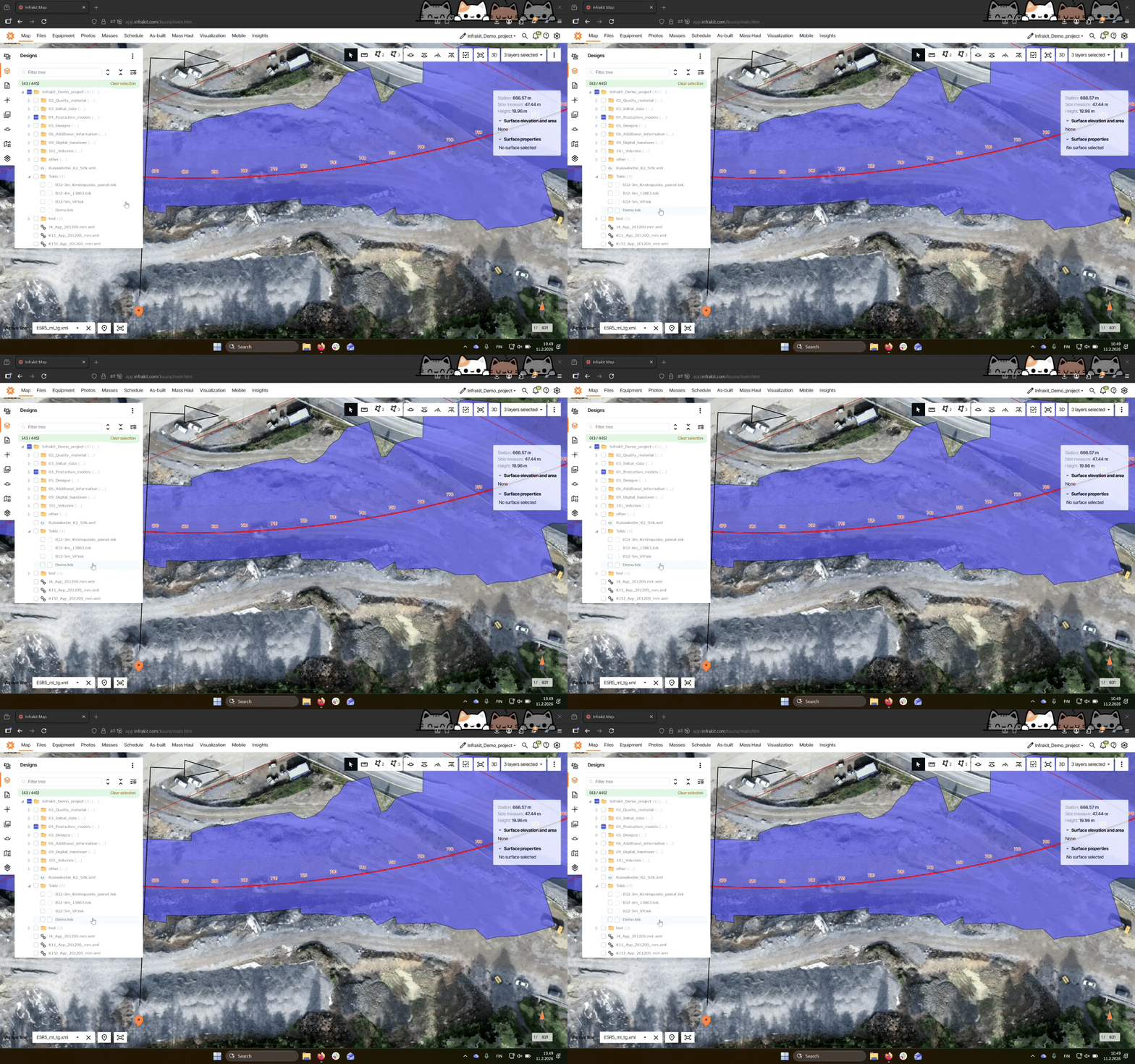
Step 2: Select files you want to visualize
After processing, find your file in the Designs tab of the Map page.
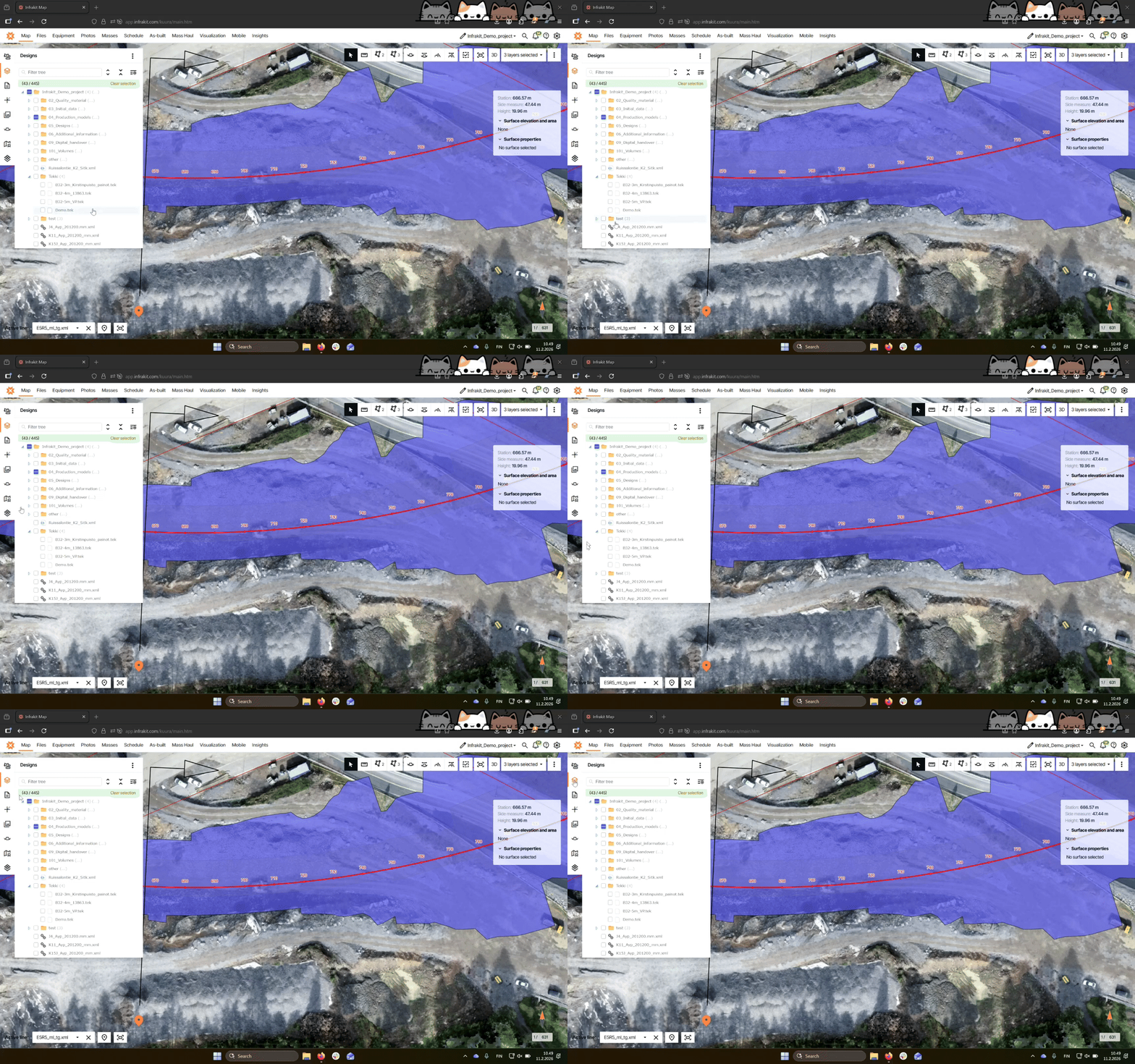
Step 3: Visualize on map
Click on the check mark next to your file to visualize it on the map.
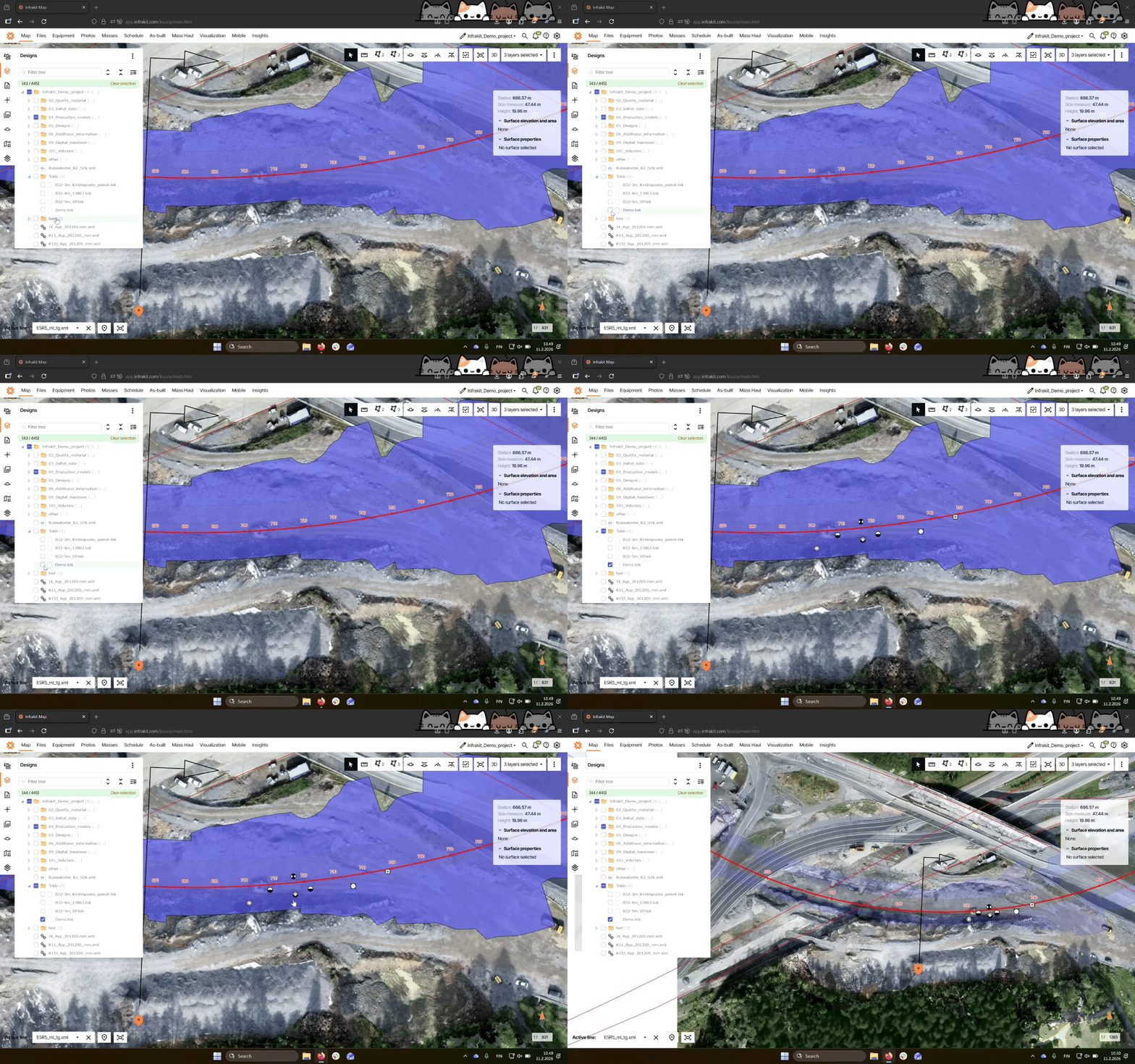
Step 4: View survey information
Click on the survey symbol to access information about it.
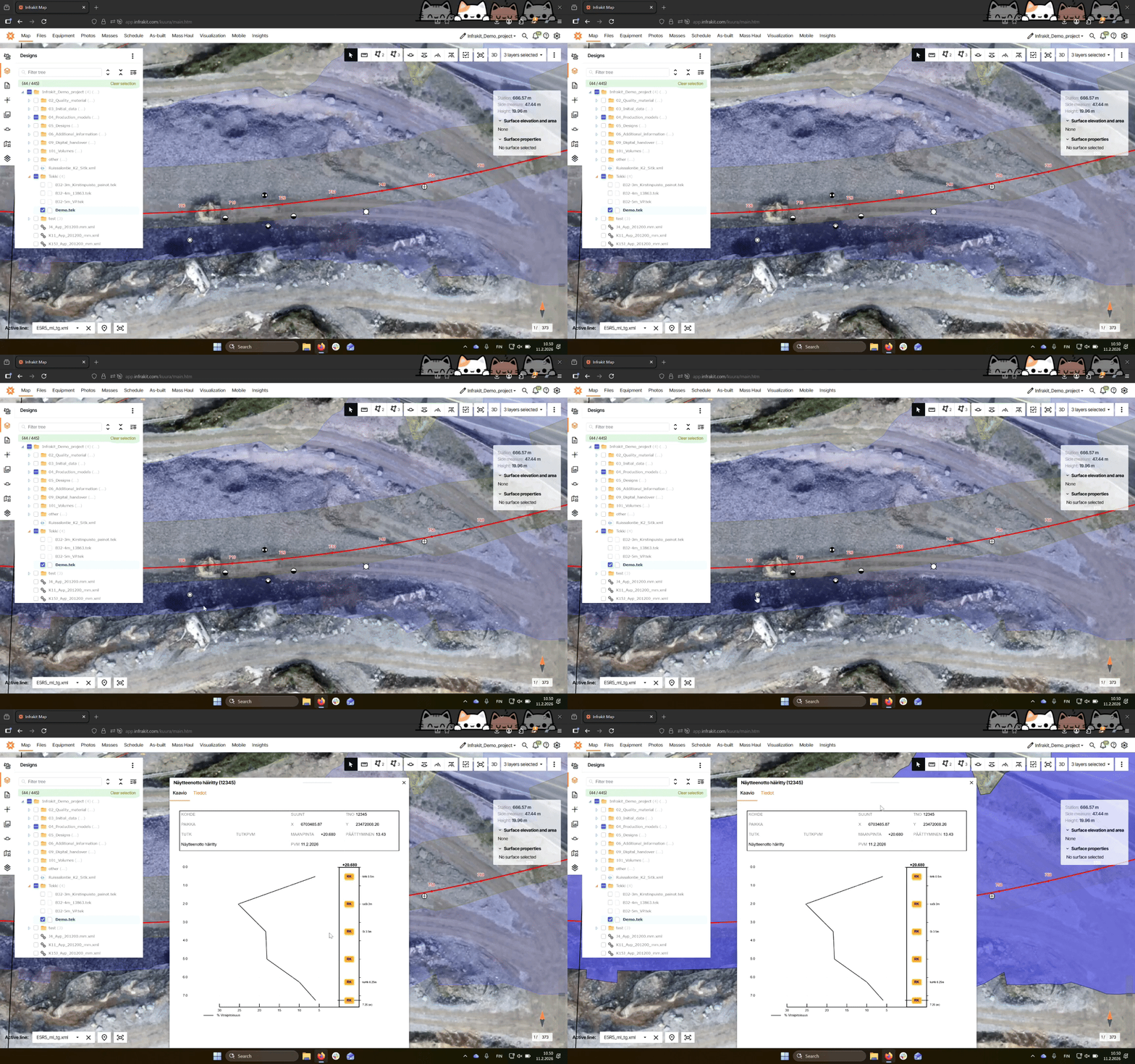
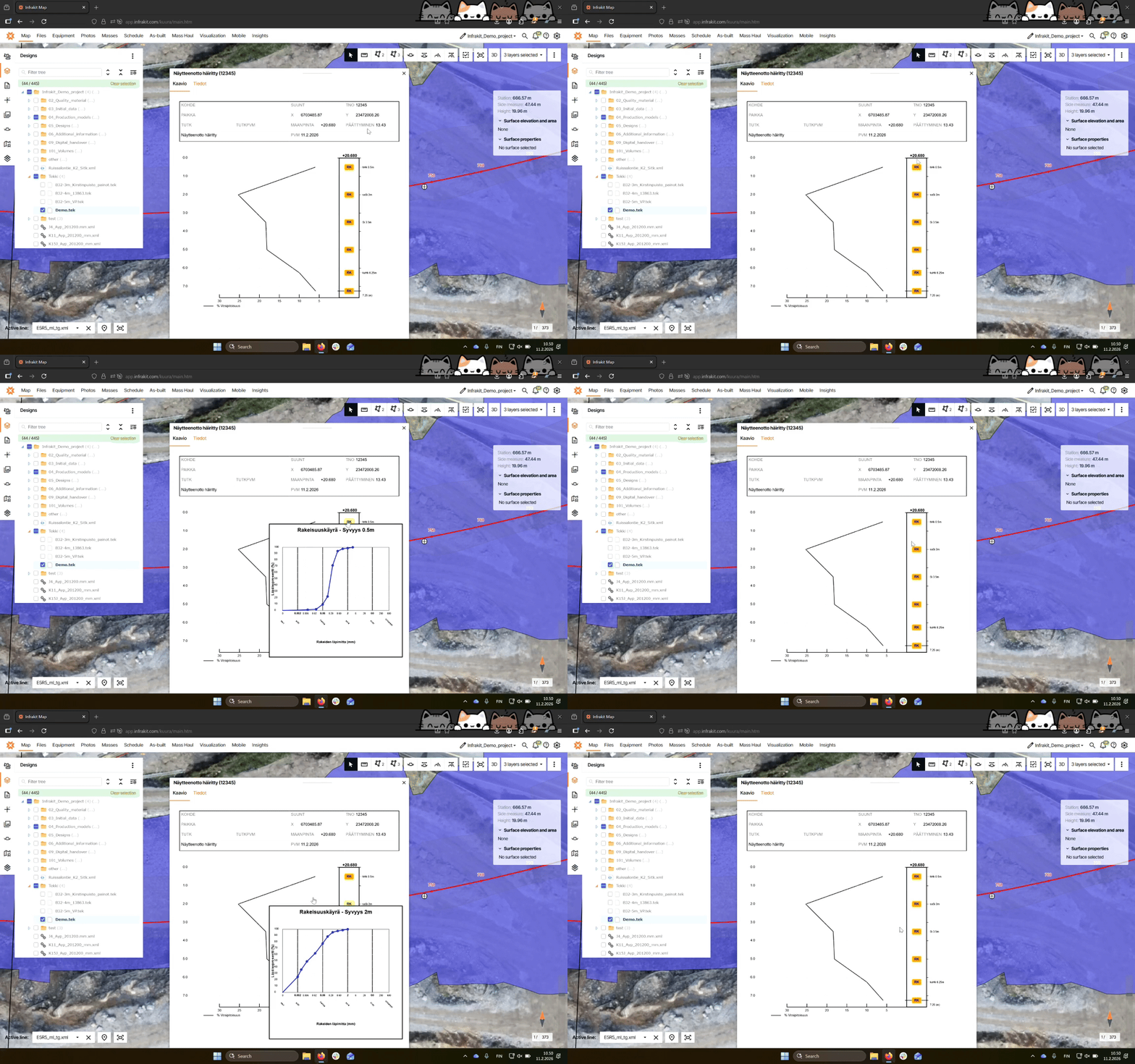
Step 5: Access additional info
Depending on the survey type, some survey types have additional information available.
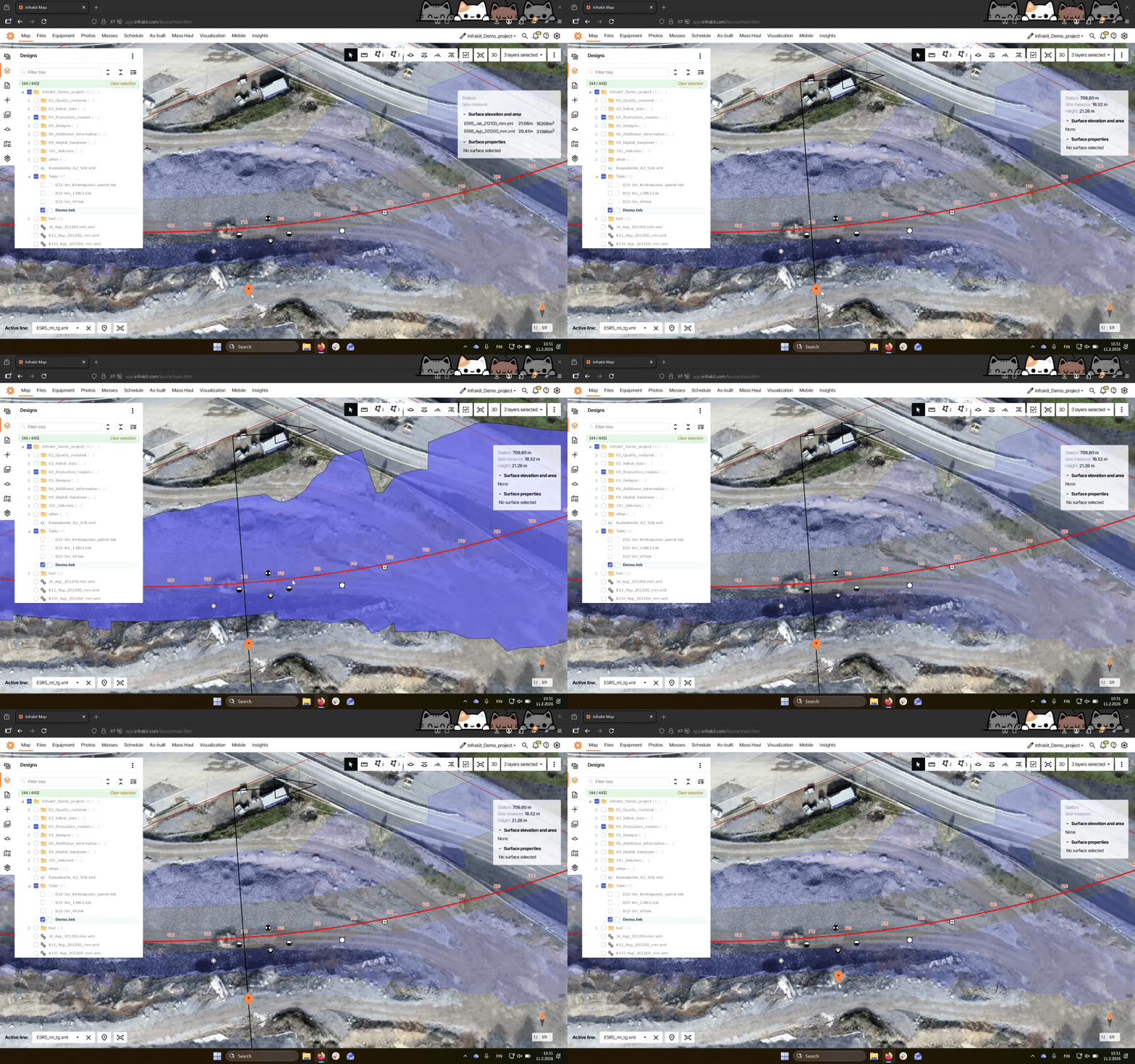
Step 6: Visualize cross sections
To draw cross sections, select active alignment that is used to draw the cross section.
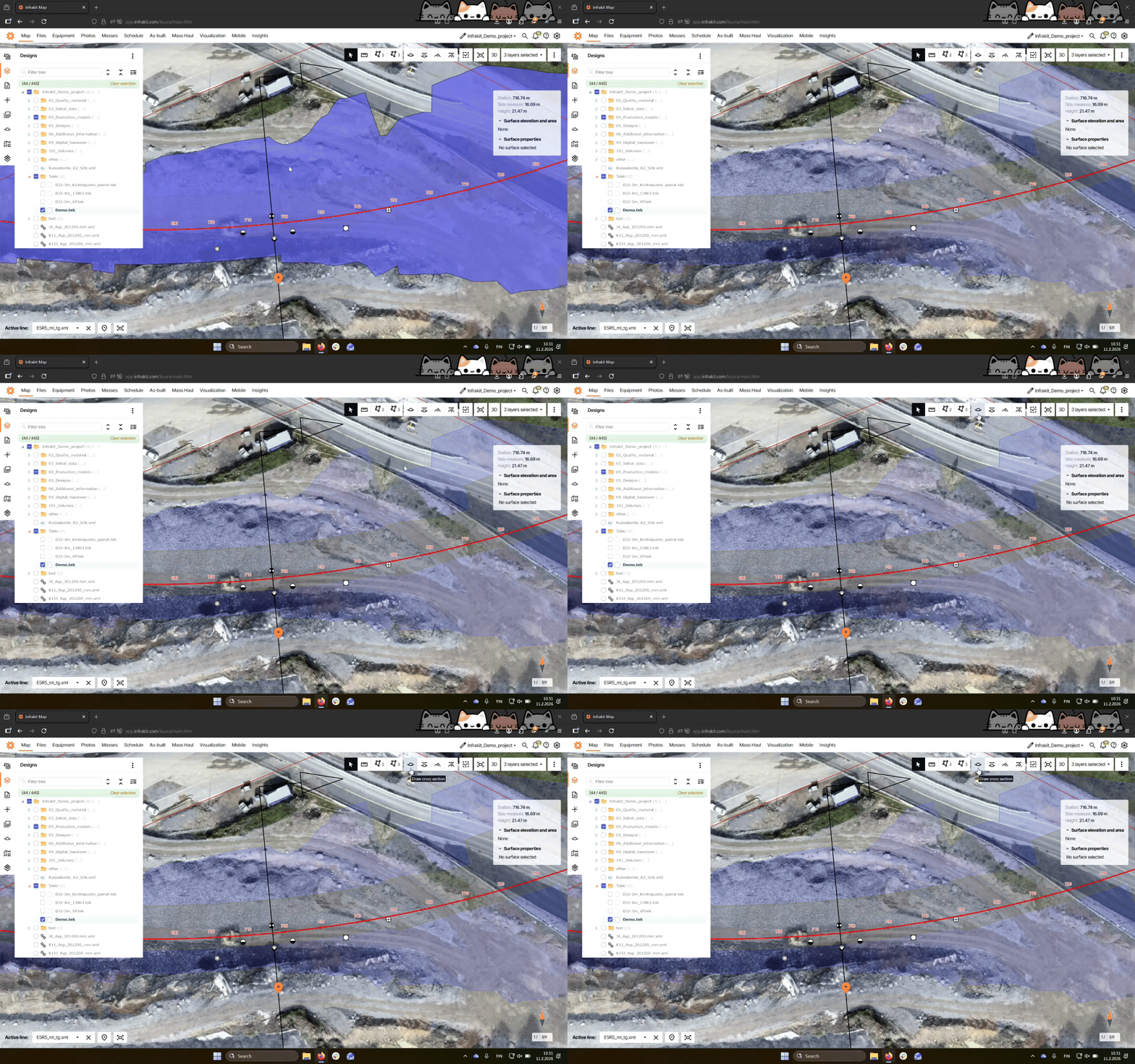
Step 7: Draw cross section
Click the Draw Cross Section marker to visualize the surveys on the map.
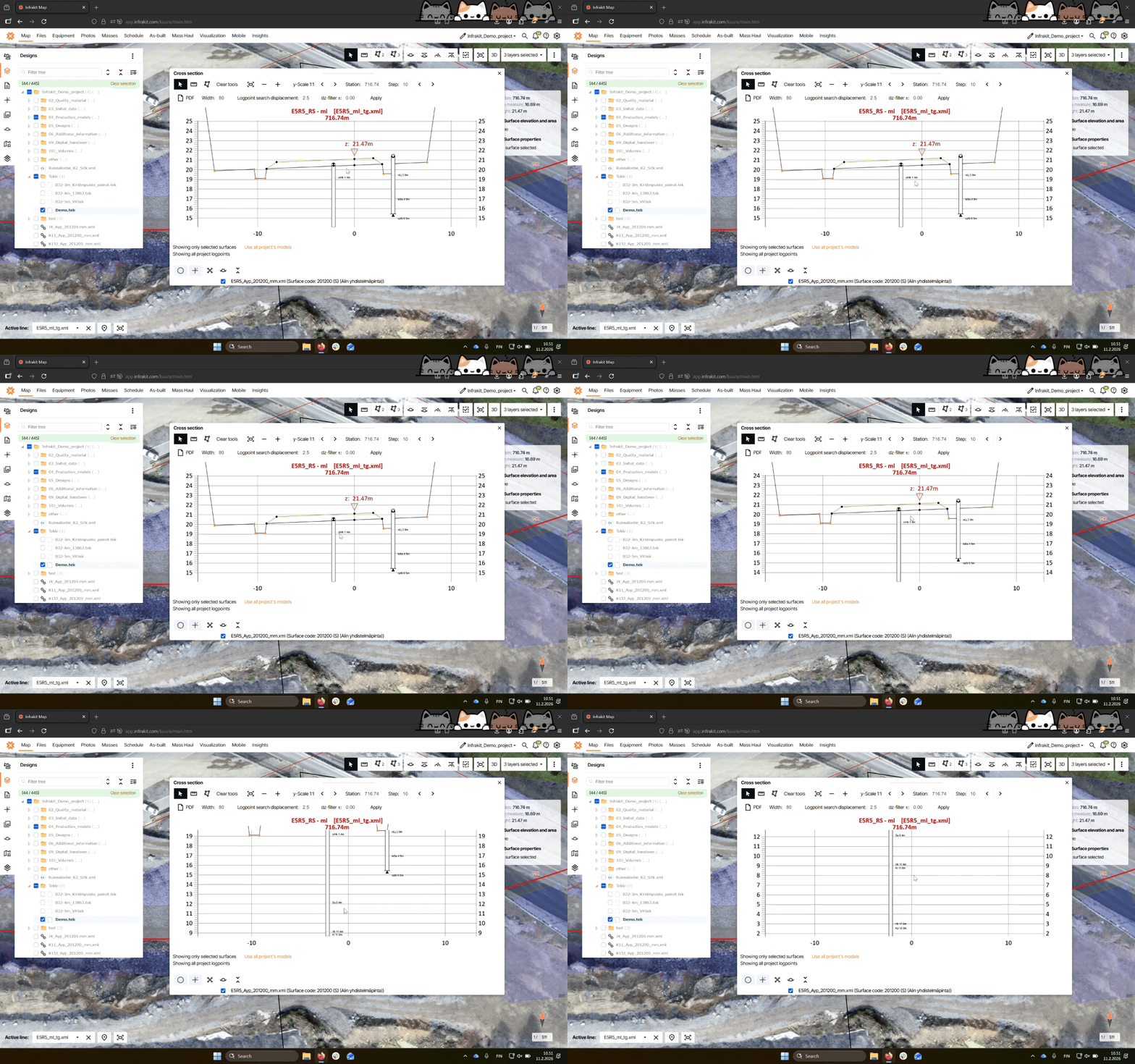
Step 8: Examine geological surveys
Tek-files are shown in cross sections and show details of the geological changes. Details can be accessed by clicking on a survey.
Step 9: Use draw free cross-section tool
If no alignment exists, use the Draw free Cross-Section button to draw a line between two points.