

Let's do it together!
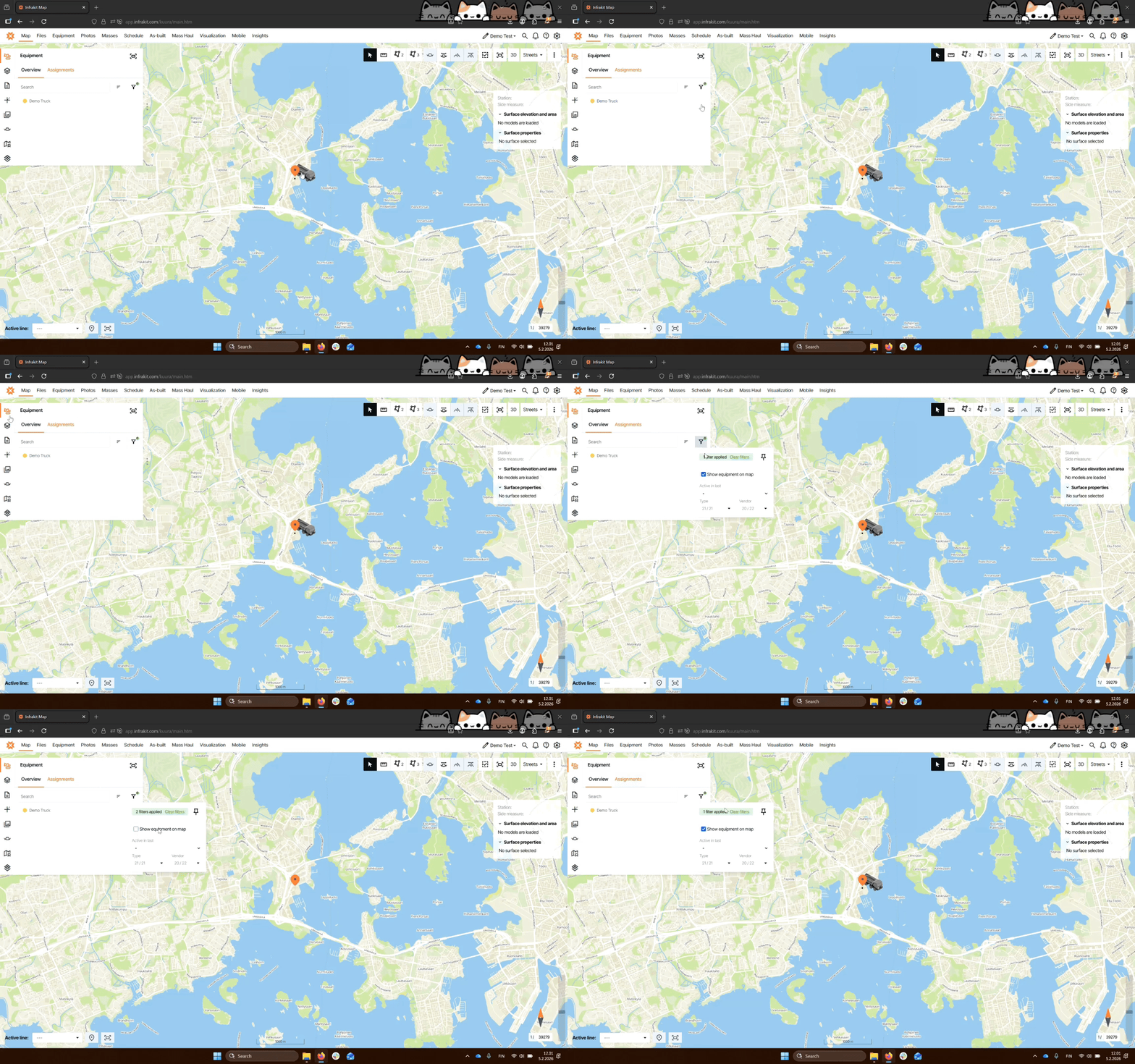
Step 1: Show Equipment
Ensure Show Equipment on Map is selected in the filters to visualize trucks or excavators.
Step 2: View Truck Location
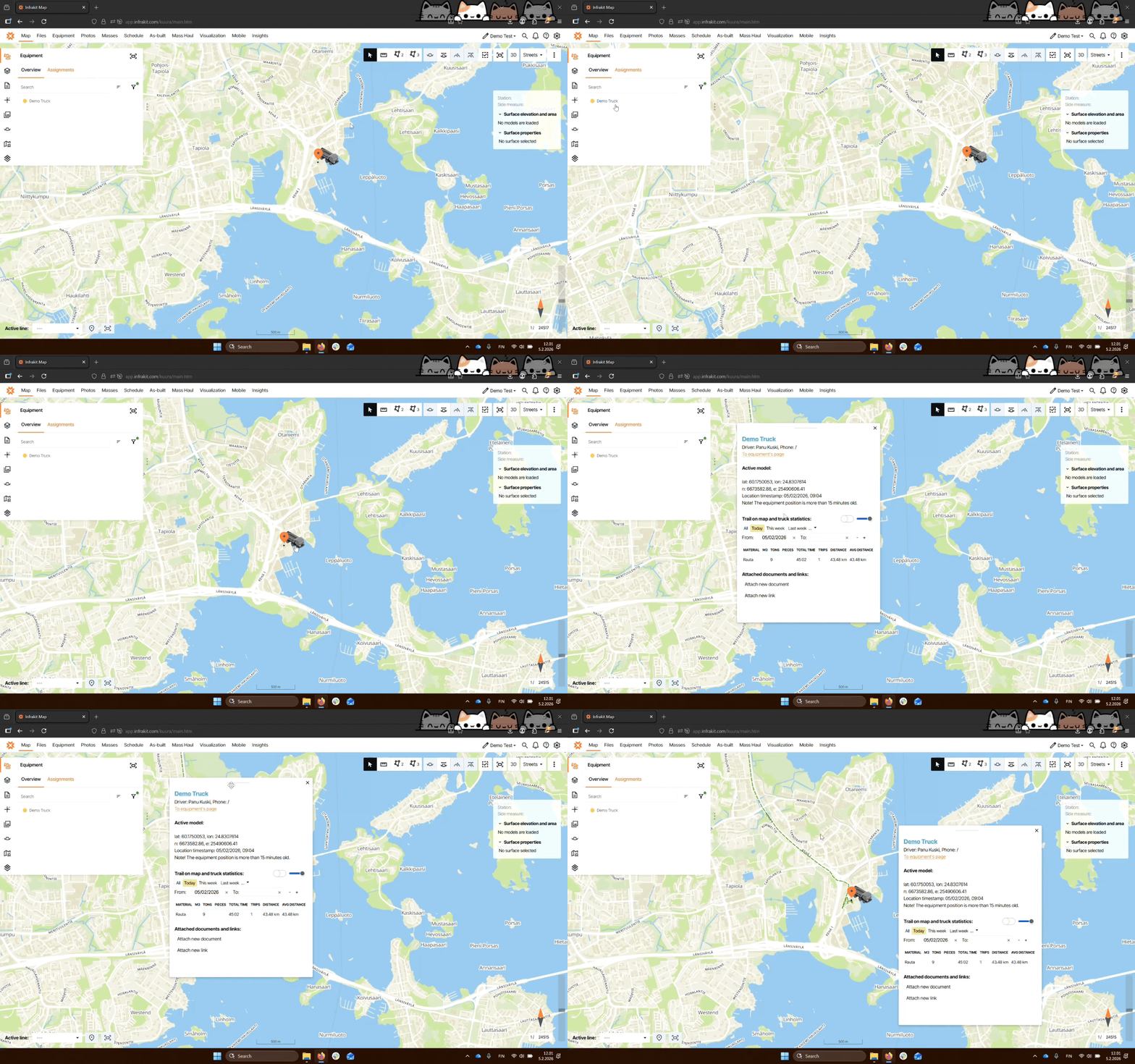
Click on the truck icon to see its current location and movement trail on the map. Click on the equipment name to locate it on the map.
Step 3: Adjust Trail Opacity
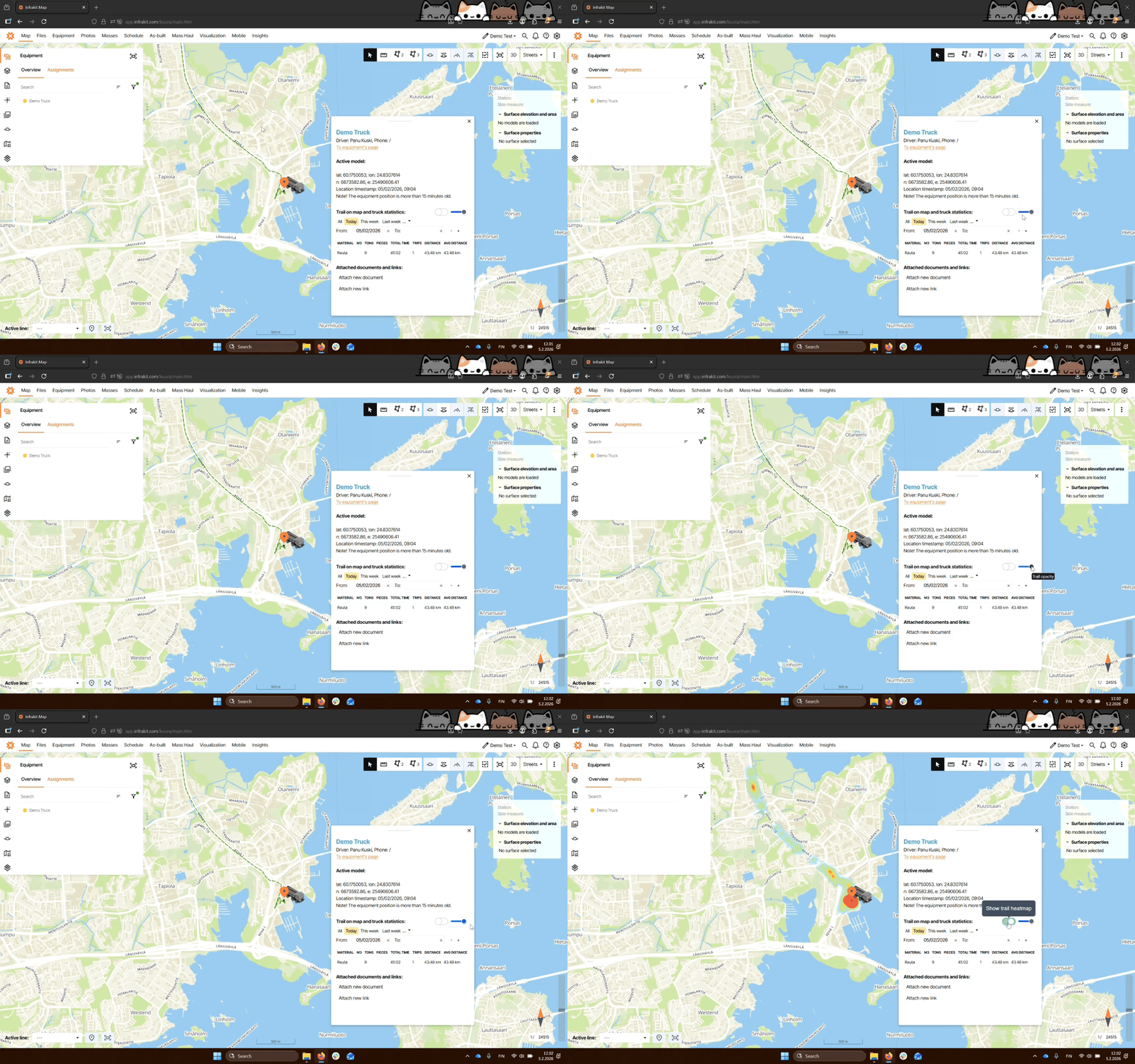
Use the slider to change the opacity of the truck's movement trail on the map.
Step 4: Utilize Heat Maps
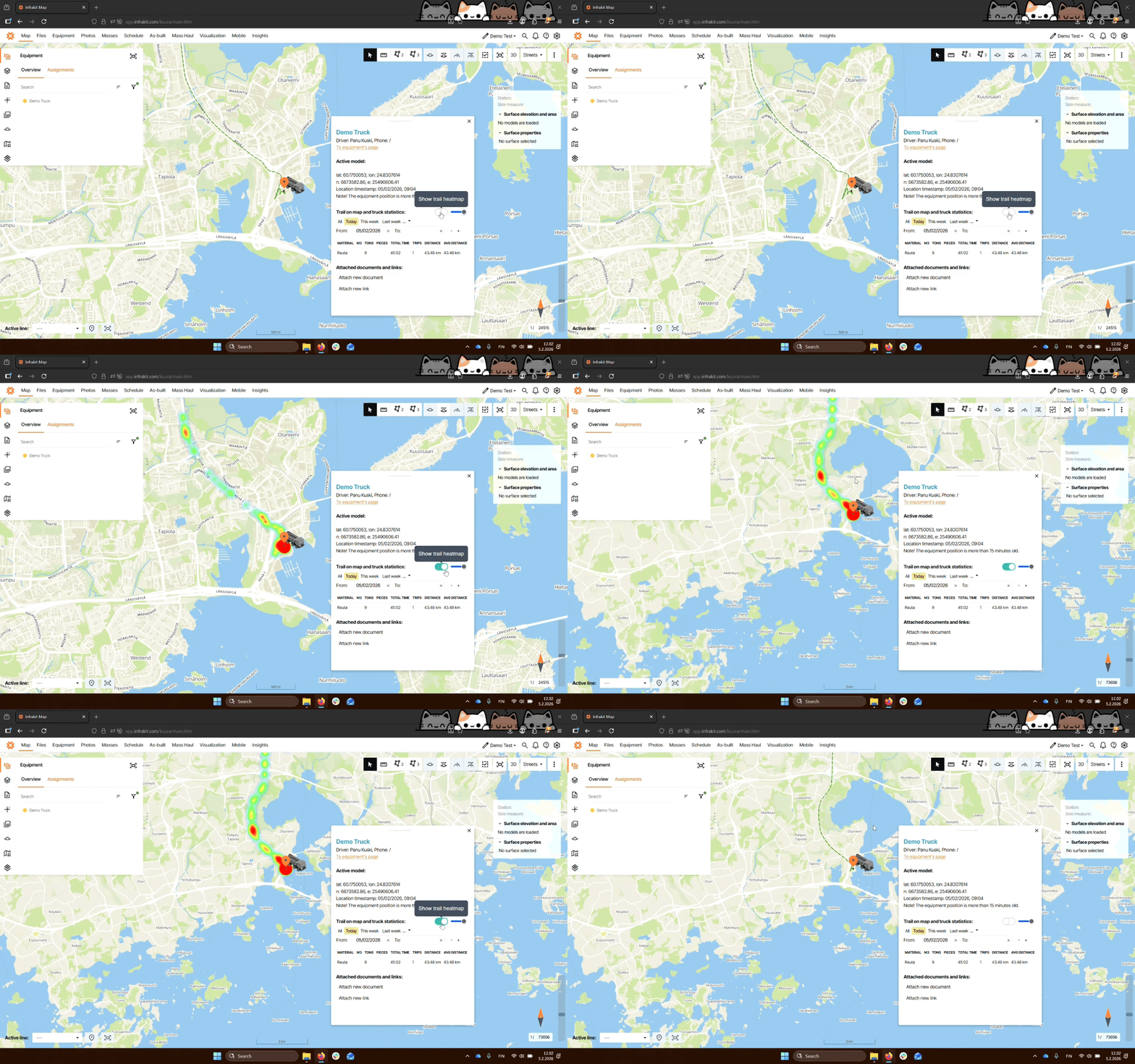
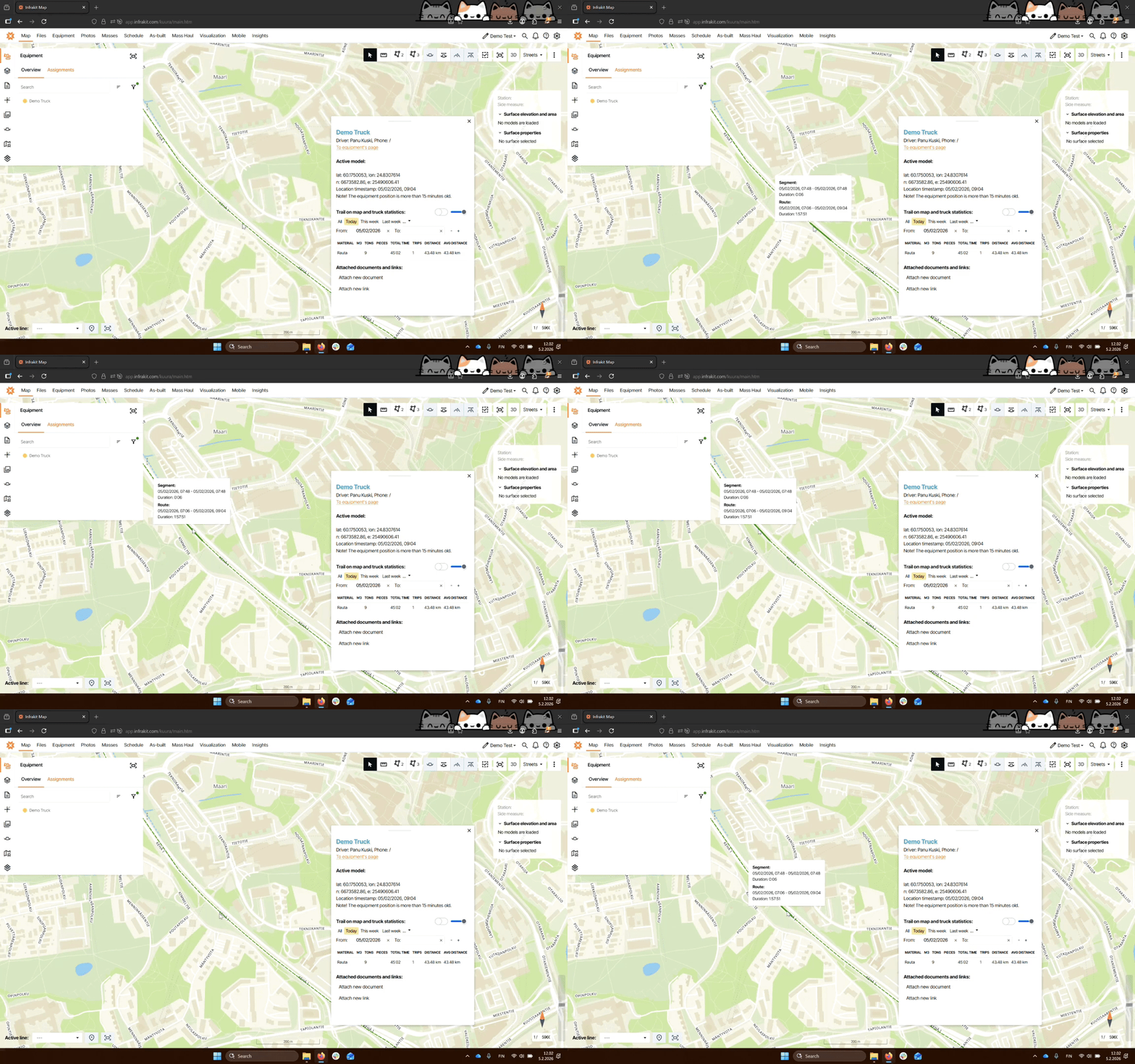
Click the heat zones option to visualize where the truck has traveled.
Step 5: Inspect Route Segments
Zoom in and hover over the trail to view detailed segment information including duration and timestamps.
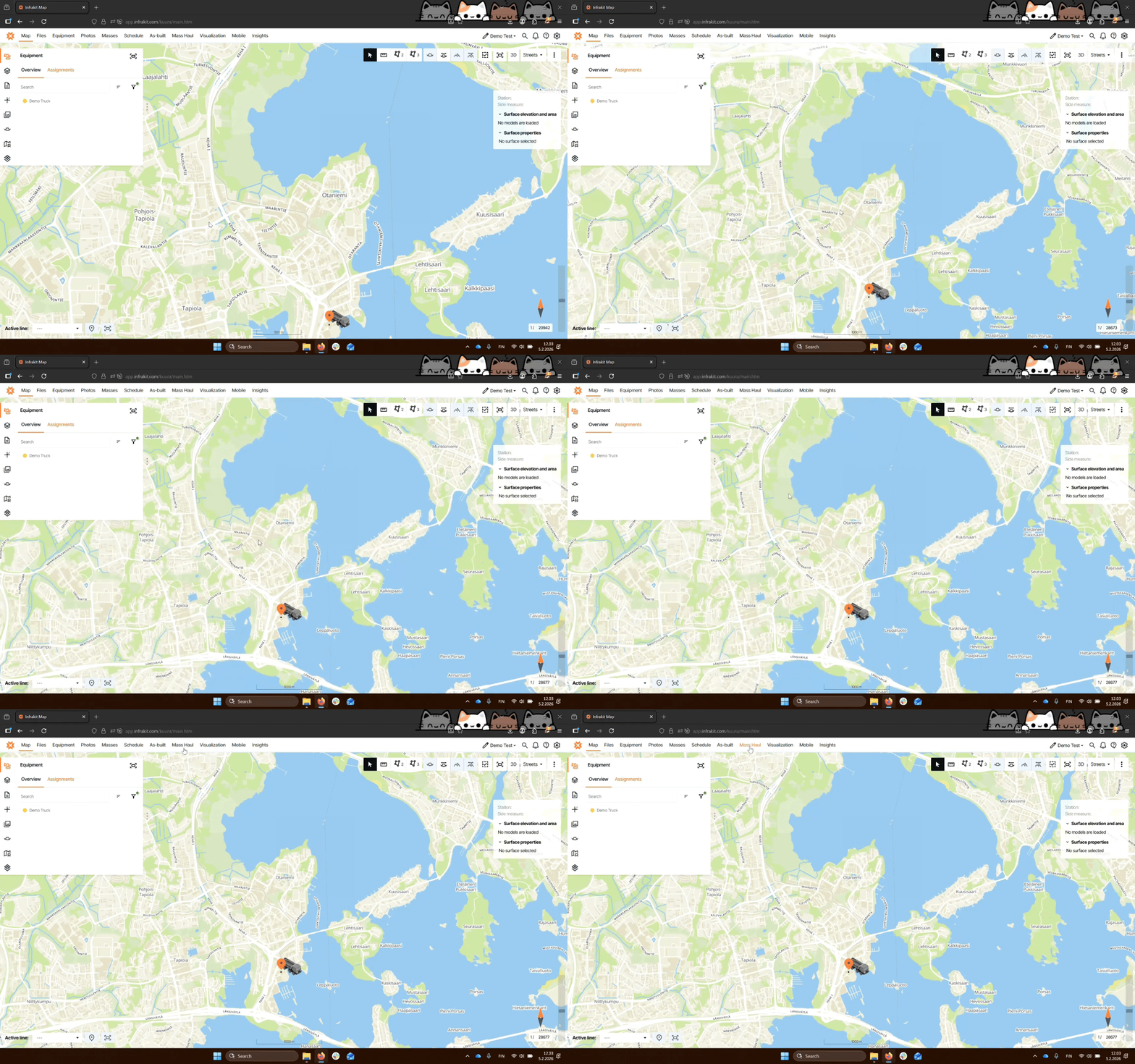
Step 6: Access Mass Haul Page
Navigate to the Mass Haul page to access trip info for trucks.
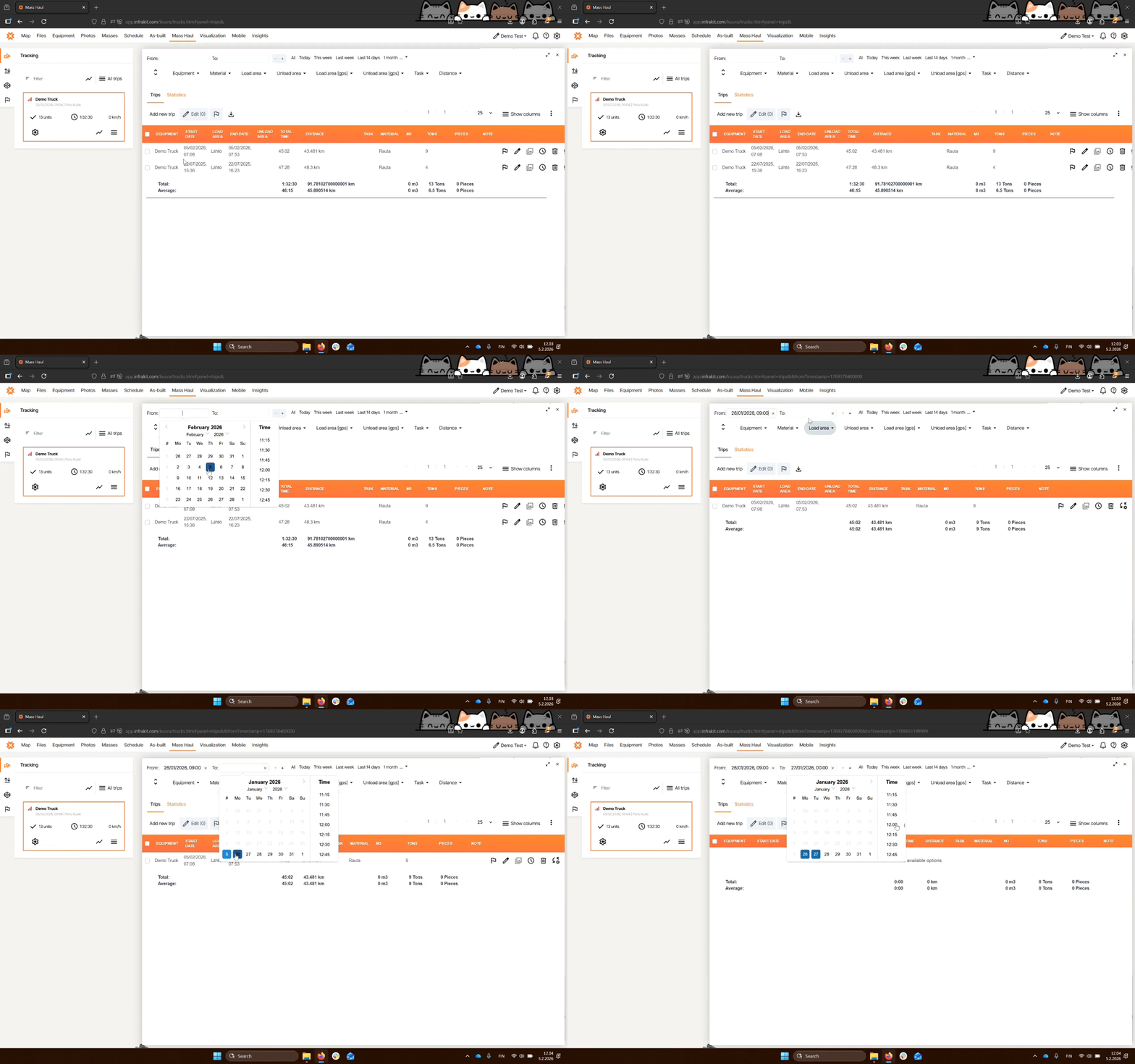
Step 7: Filter by Time
Use the time filter to select a specific date and time for trip data.
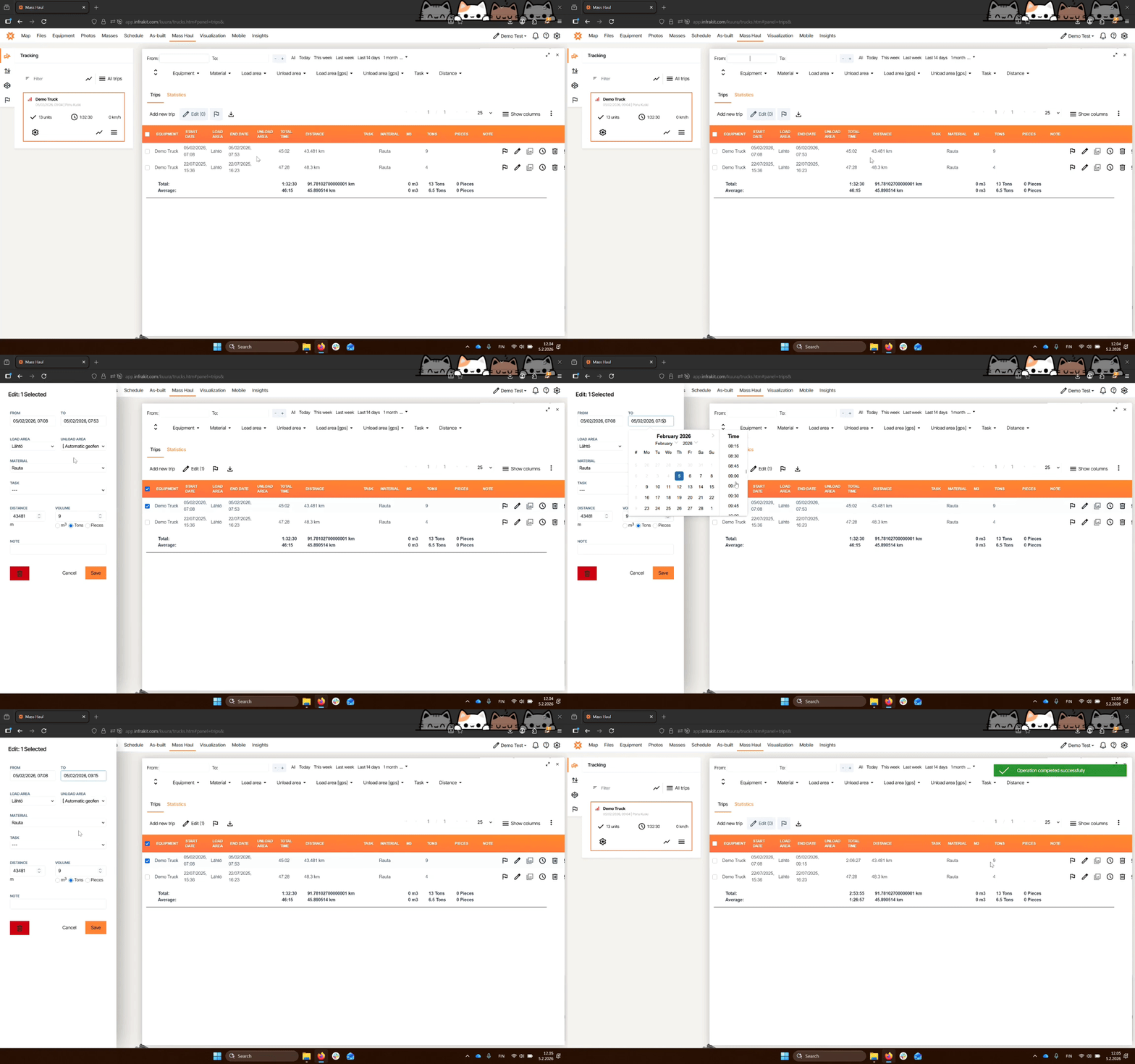
Step 8: Adjust Trip Timing
Edit the start and end time of the trip as needed and save your changes.
Troubleshooting
Equipment not visible
Ensure Show Equipment on Map is selected.
No data after filtering
Verify date and time selections are correct.
FAQ
How do I edit trip times?
You can now adjust start and end times directly on the Mass Haul page.