

Let's do it together!
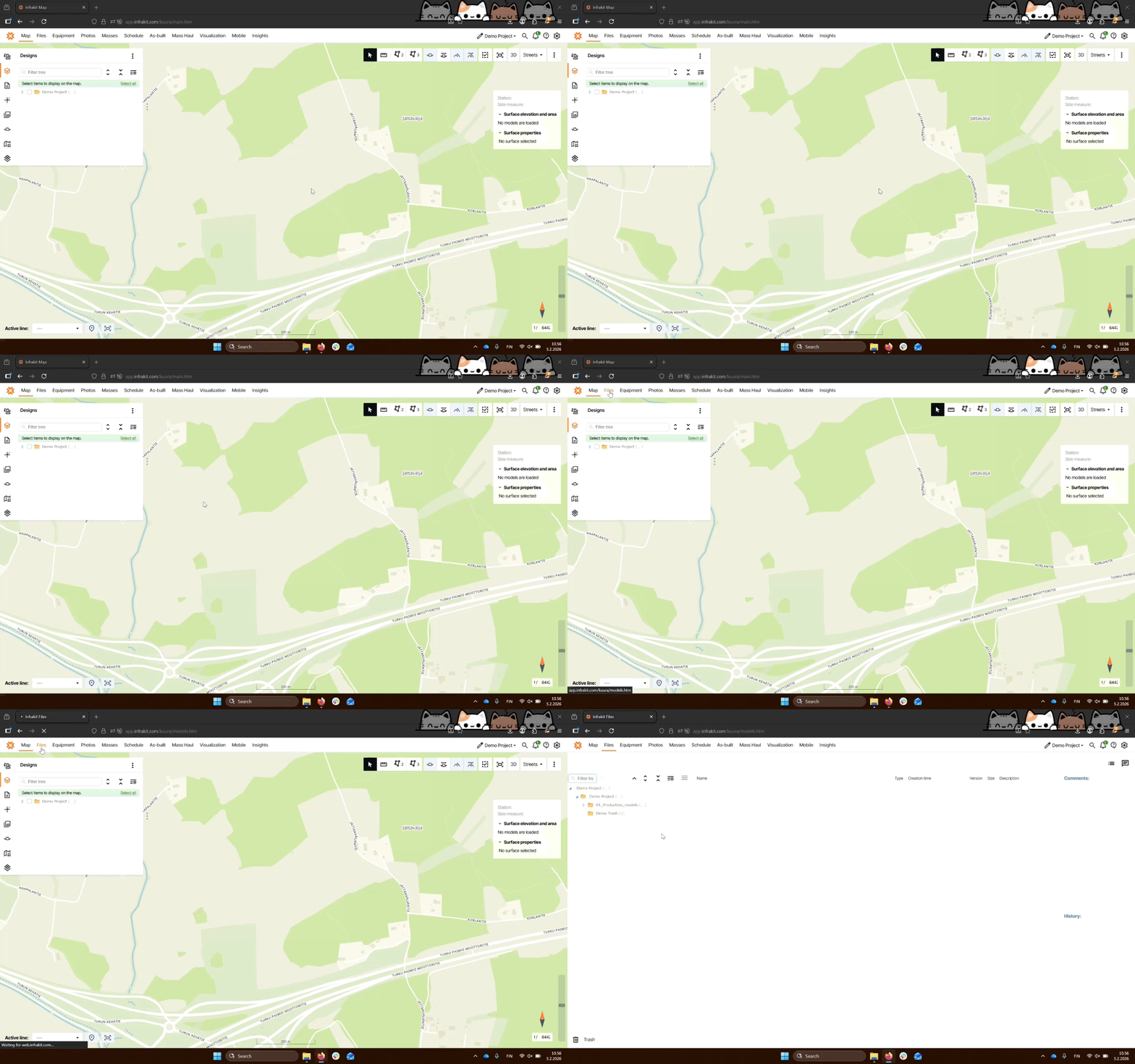
Step 1: Access Files Page
Go to the Files page in Infrakit Office to access the trash can.
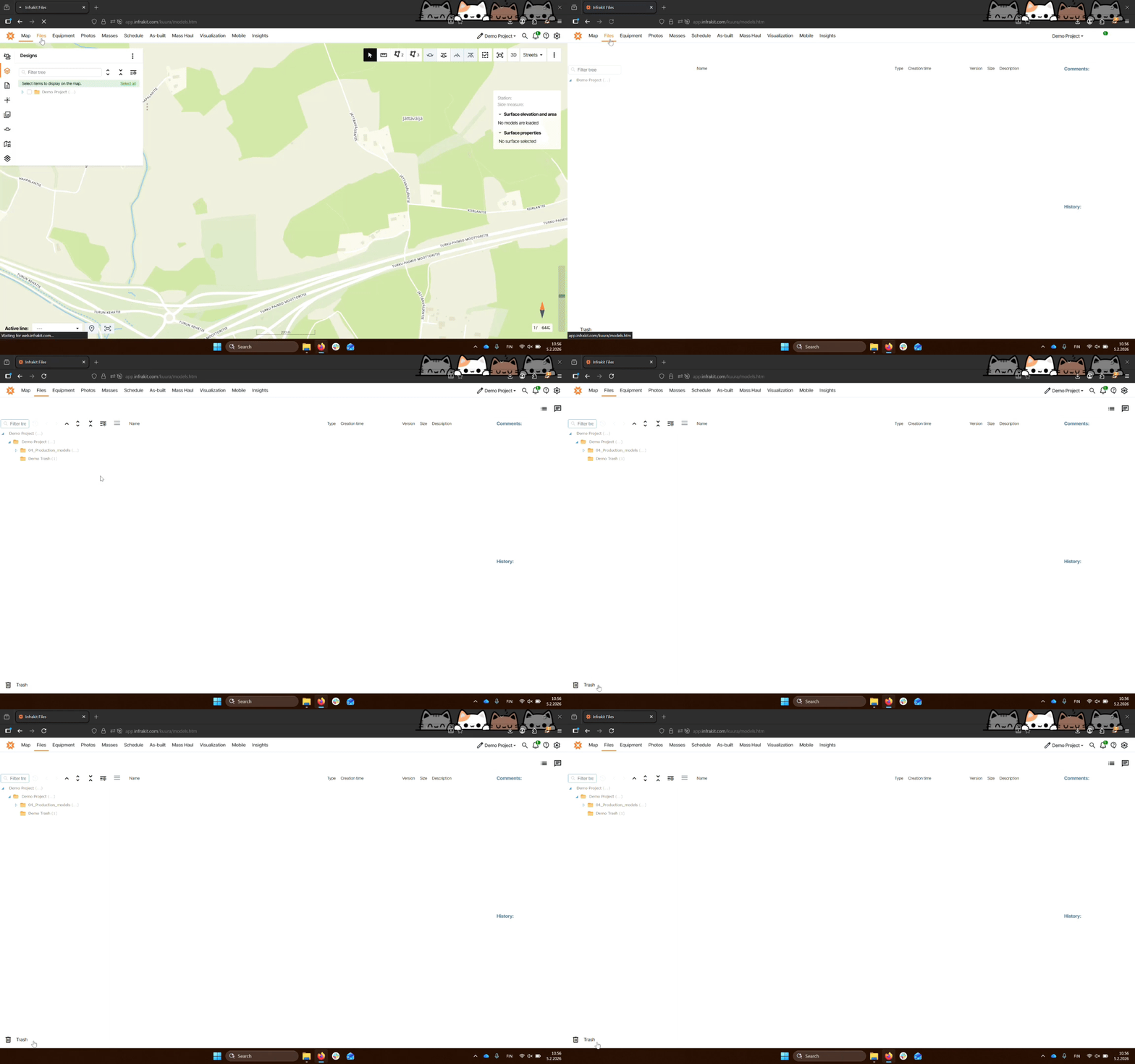
Step 2: Locate Trash Can
Find the trash can icon located in the lower left corner of the Files page.
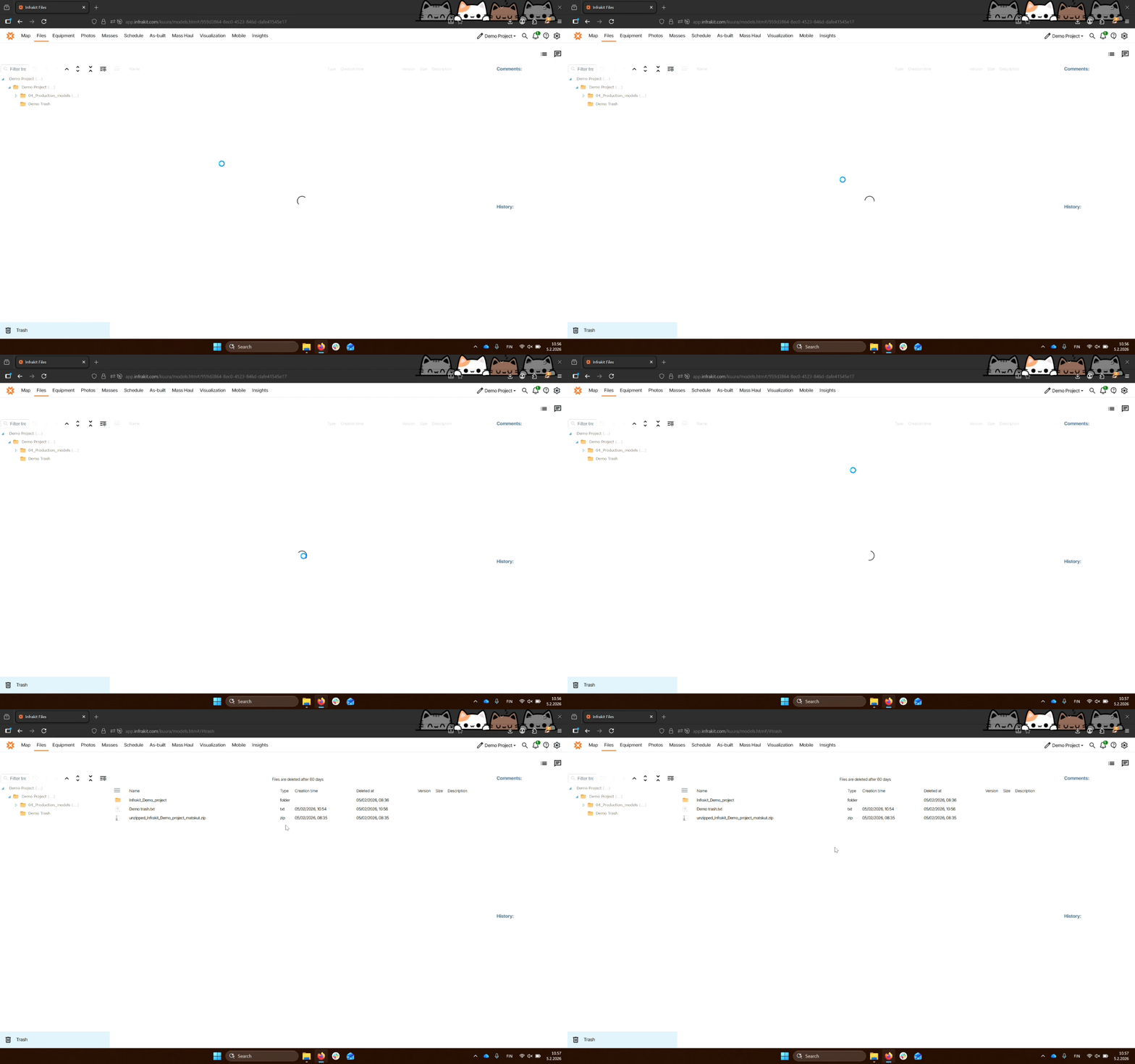
Step 3: Check Trash
Navigate to the trash can to view deleted files. It may take a moment to load.
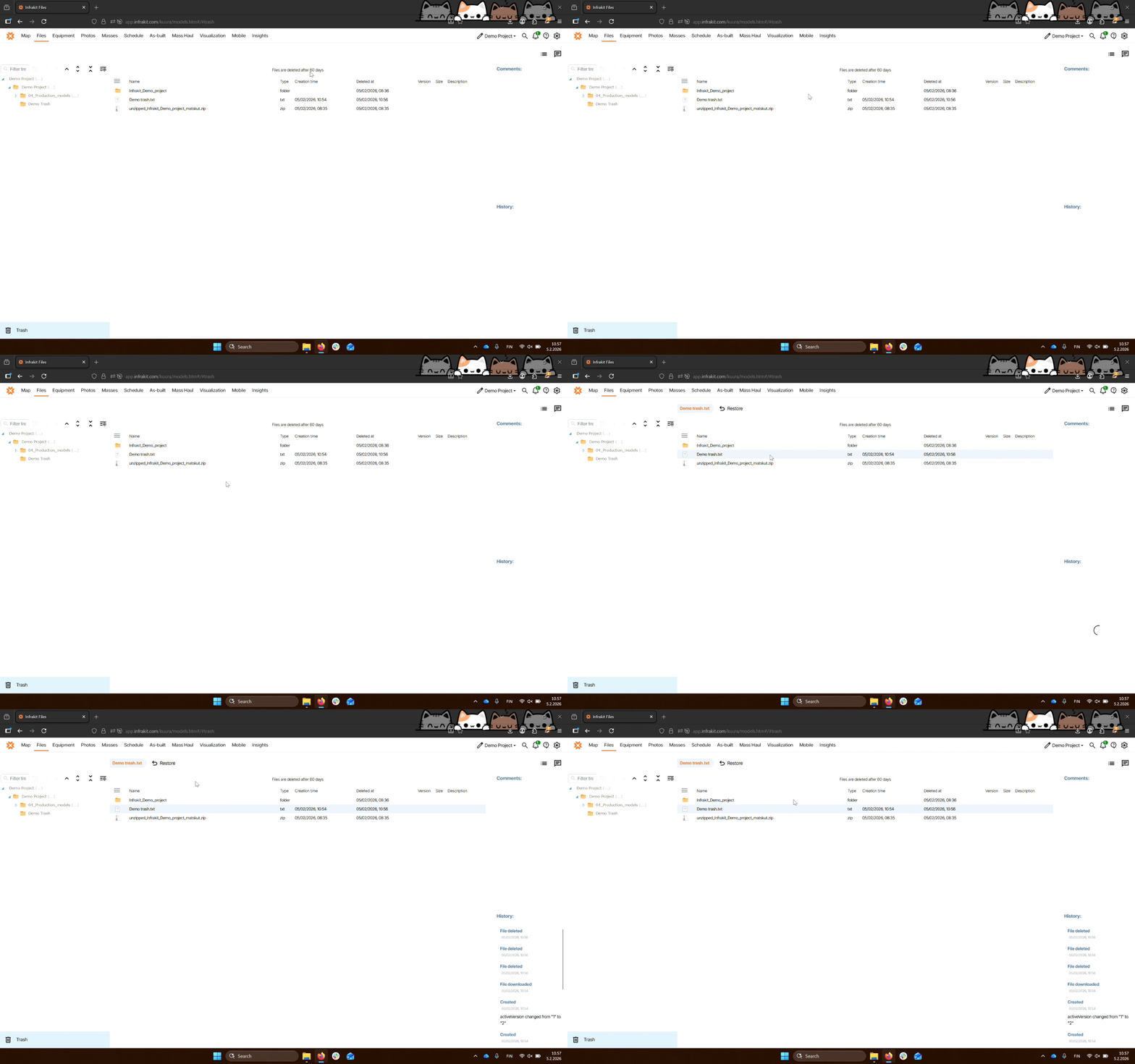
Step 4: Restore Files
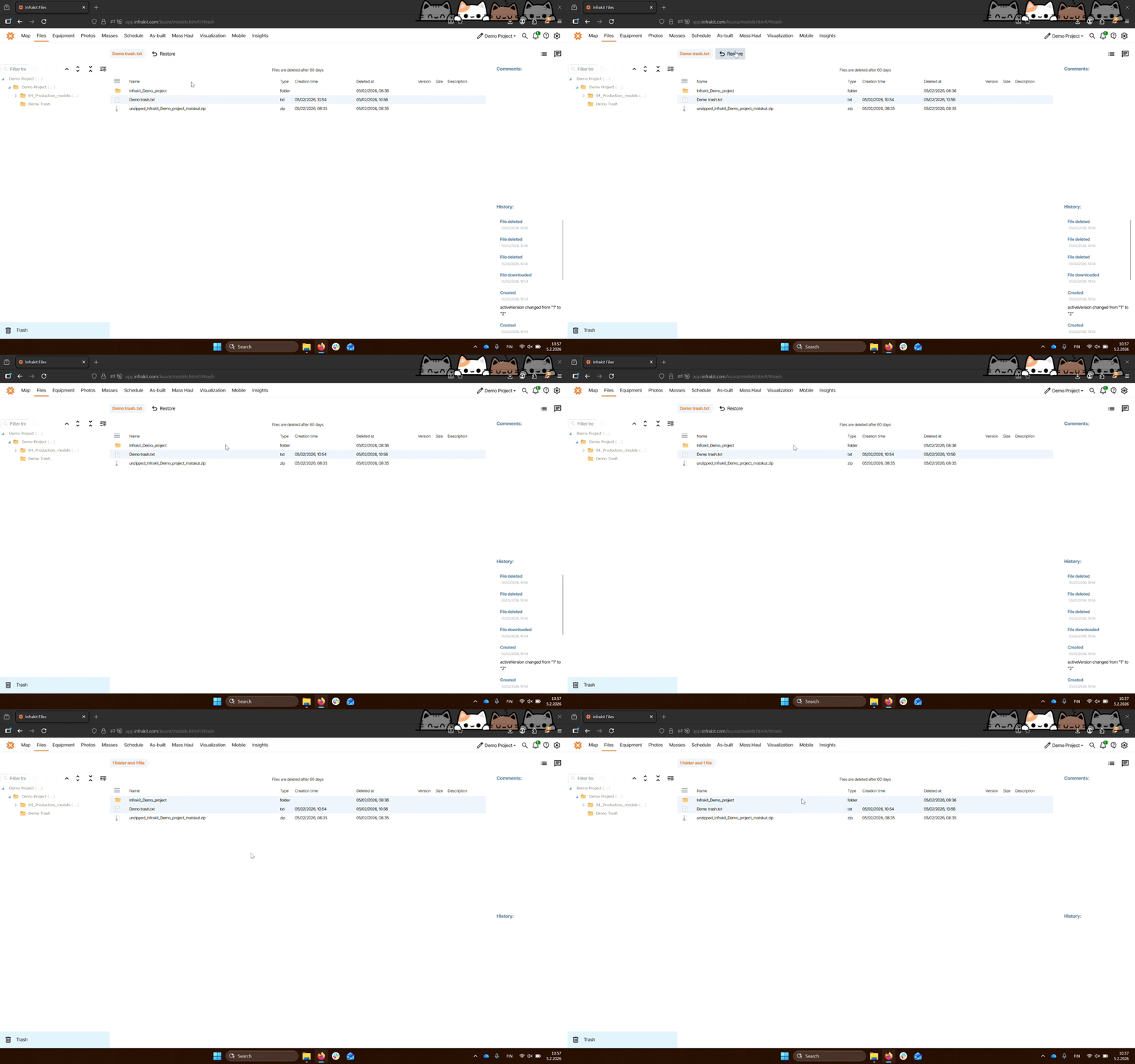
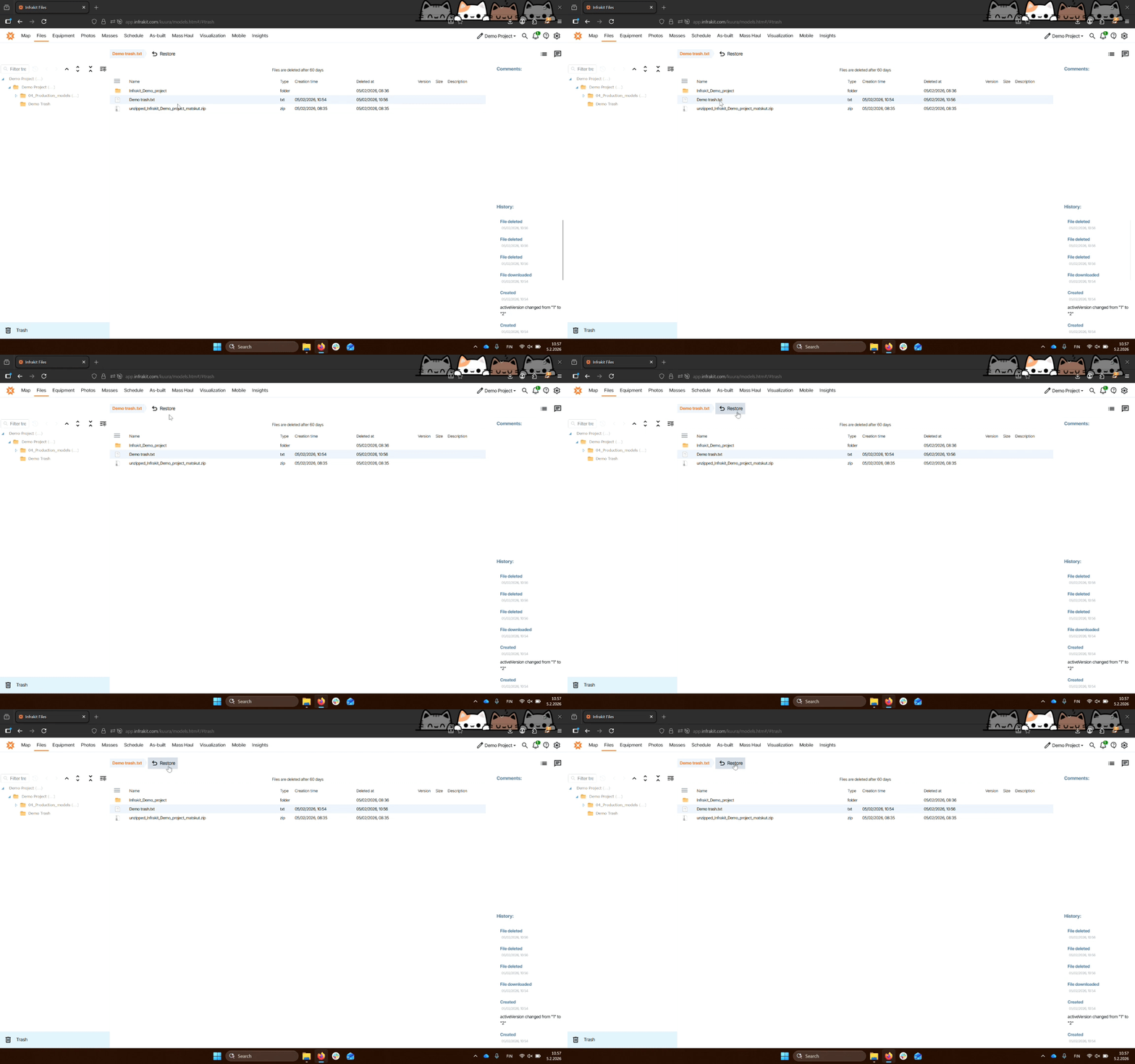
Select the one or more files you wish to restore and click Restore.
Step 5: Use Selection Commands
Utilize Control or Shift to select multiple files at once.
Step 6: Confirm Restoration
After selecting the files, click Restore and then confirm the action.
Step 7: Verify Restoration
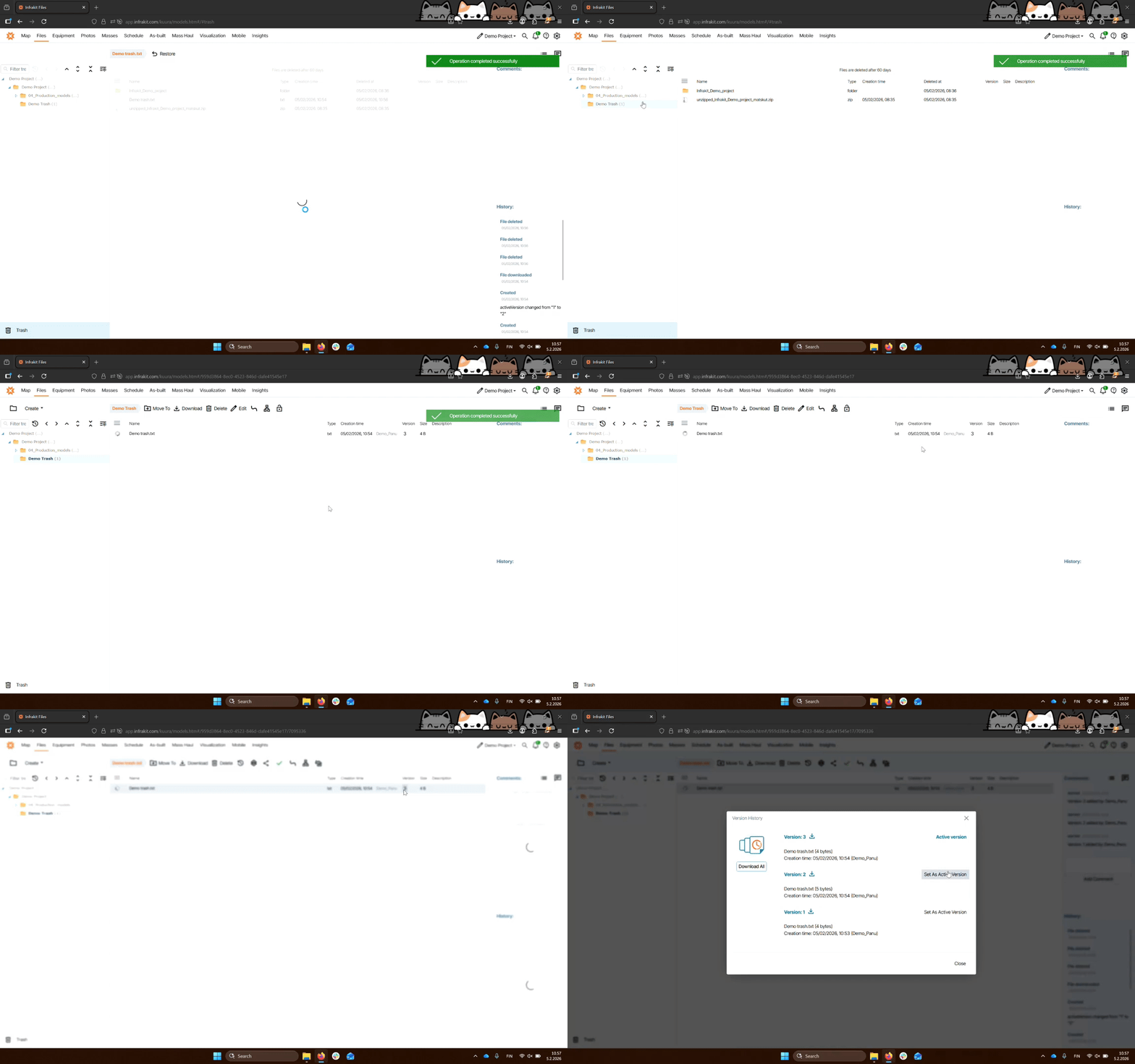
Check the original folder to ensure the file has been restored along with its history and versions.
Troubleshooting
File not appearing in trash.
Confirm the file is within the 60-day retention period.
FAQ
How long do files stay in trash?
Files remain in the trash for 60 days.
Can I restore multiple files?
Yes, use Control or Shift to select multiple files for restoration.