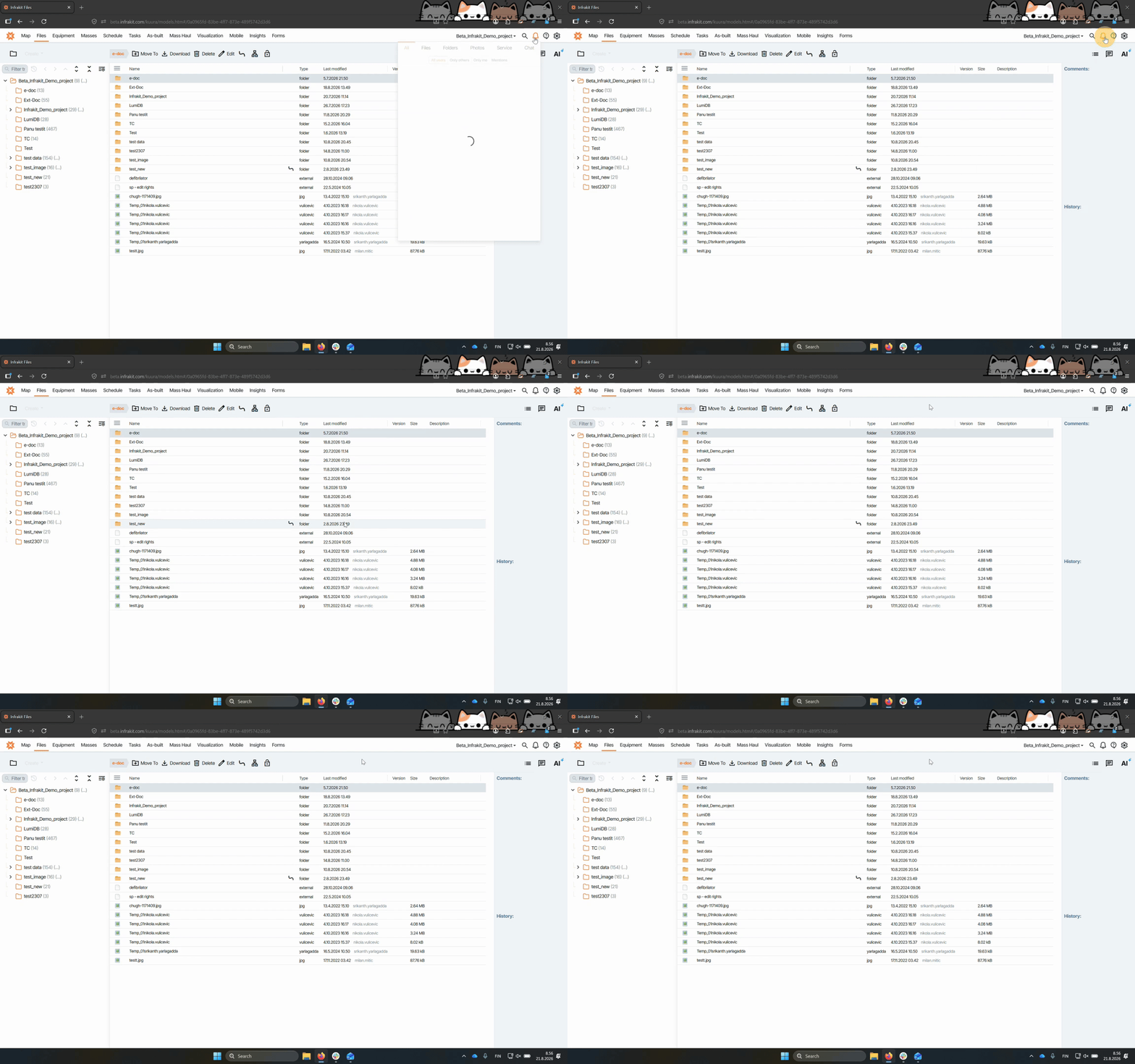

A wrong time for the digest message is said in the video voice over. It has been updated to be 3 AM Finnish time
This guide explains how to subscribe to notifications for changes in folders within an Infrakit project. Let's look at the steps:
Step 1: Go to Files Page
Navigate to the Files page in your Infrakit project.
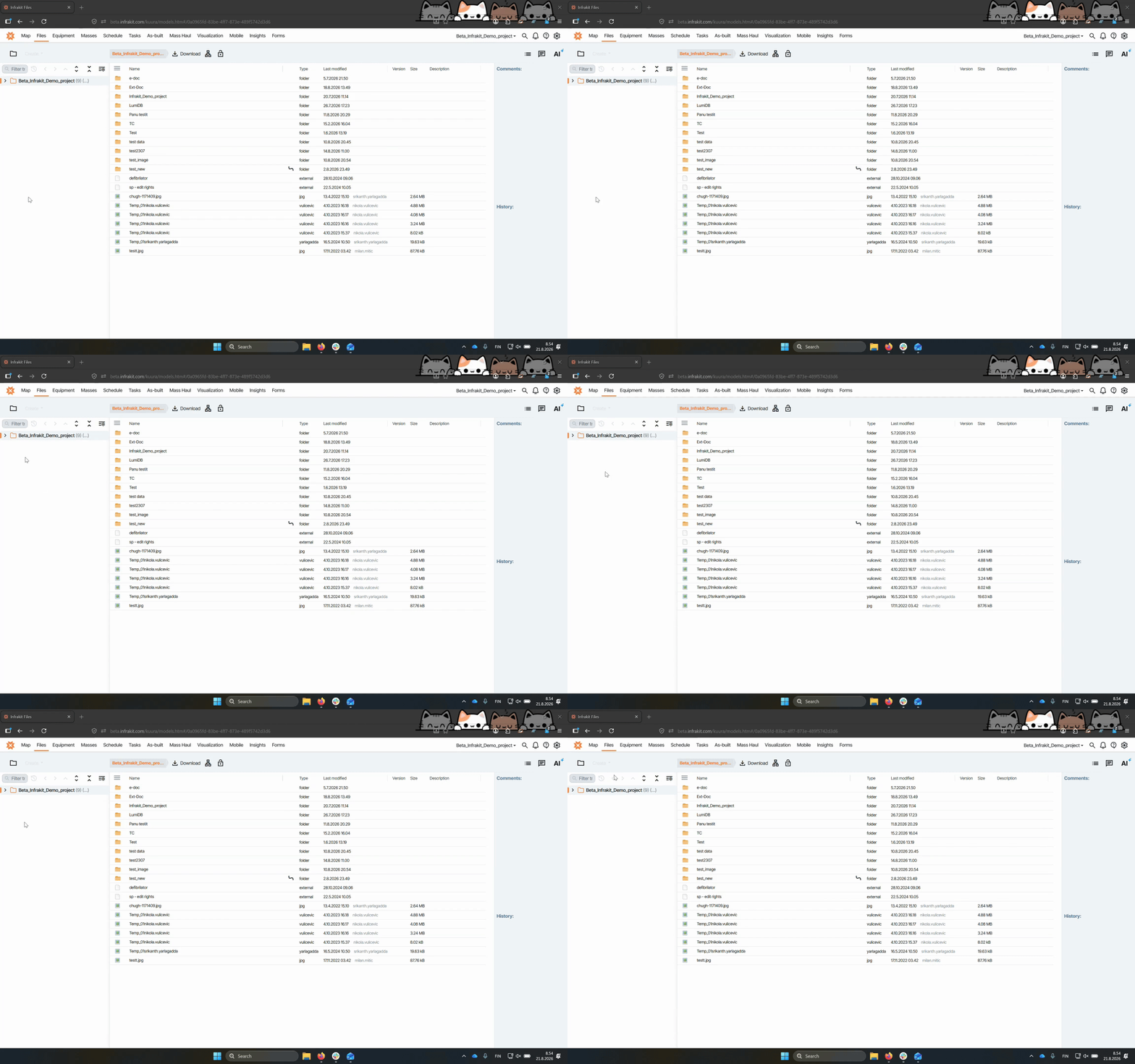
Step 2: Select Folder
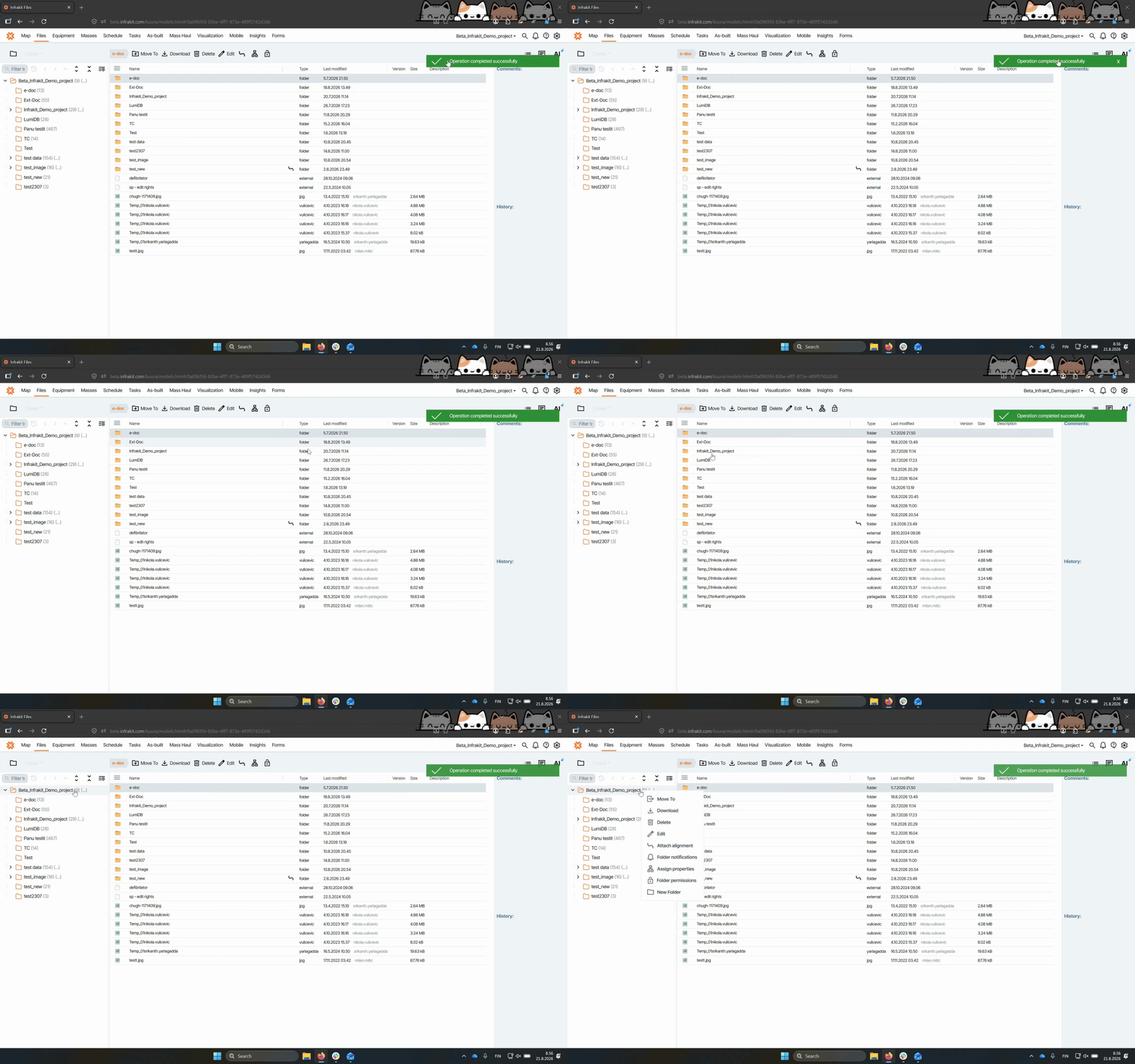
Right-click on the folder you want to subscribe to. You can do this either from the folder tree on the left side or from the open folder on the right side of the screen.
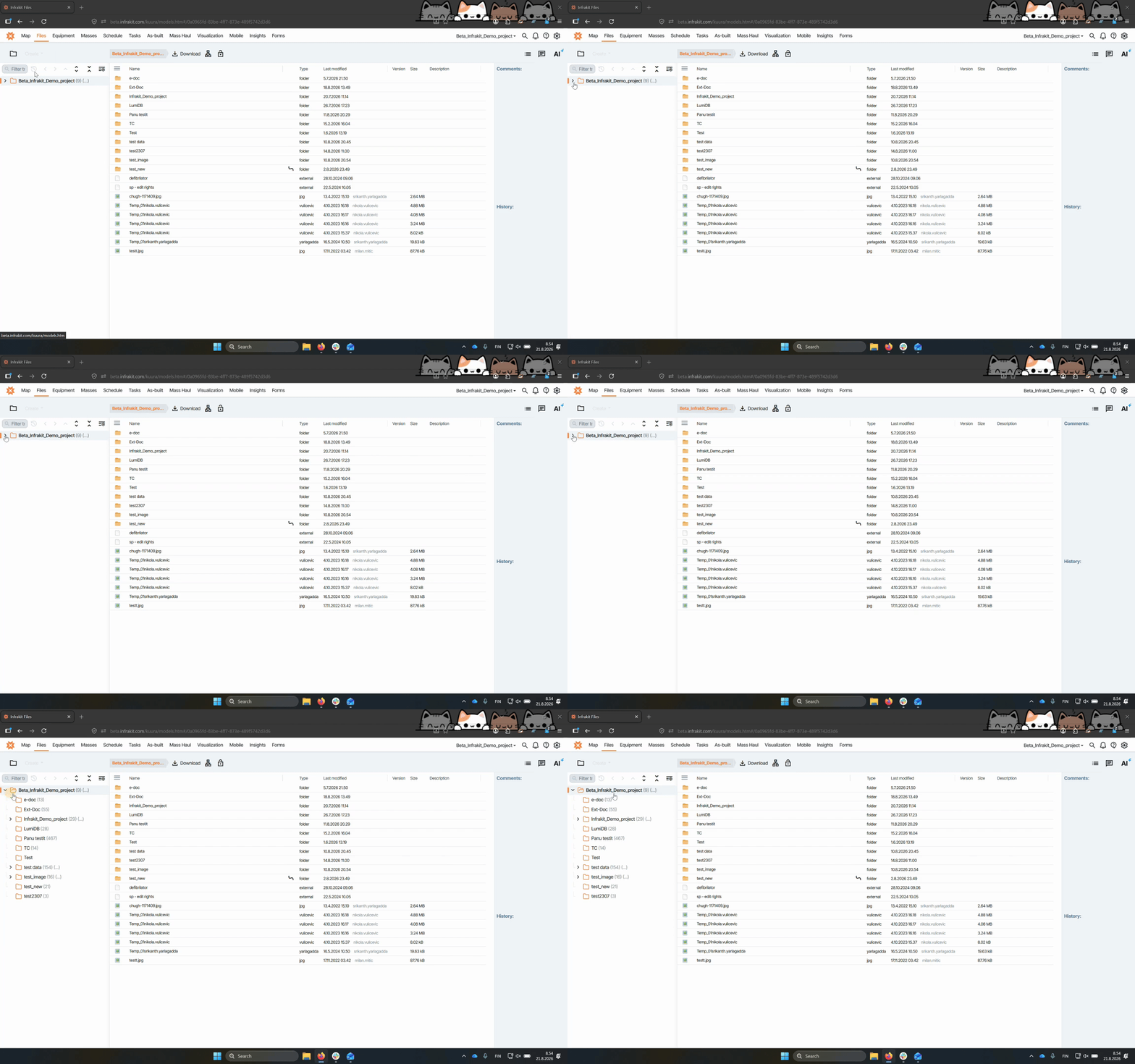
Step 3: Open Folder Notifications
Select Folder Notifications from the context menu. You will see project-dependent options.
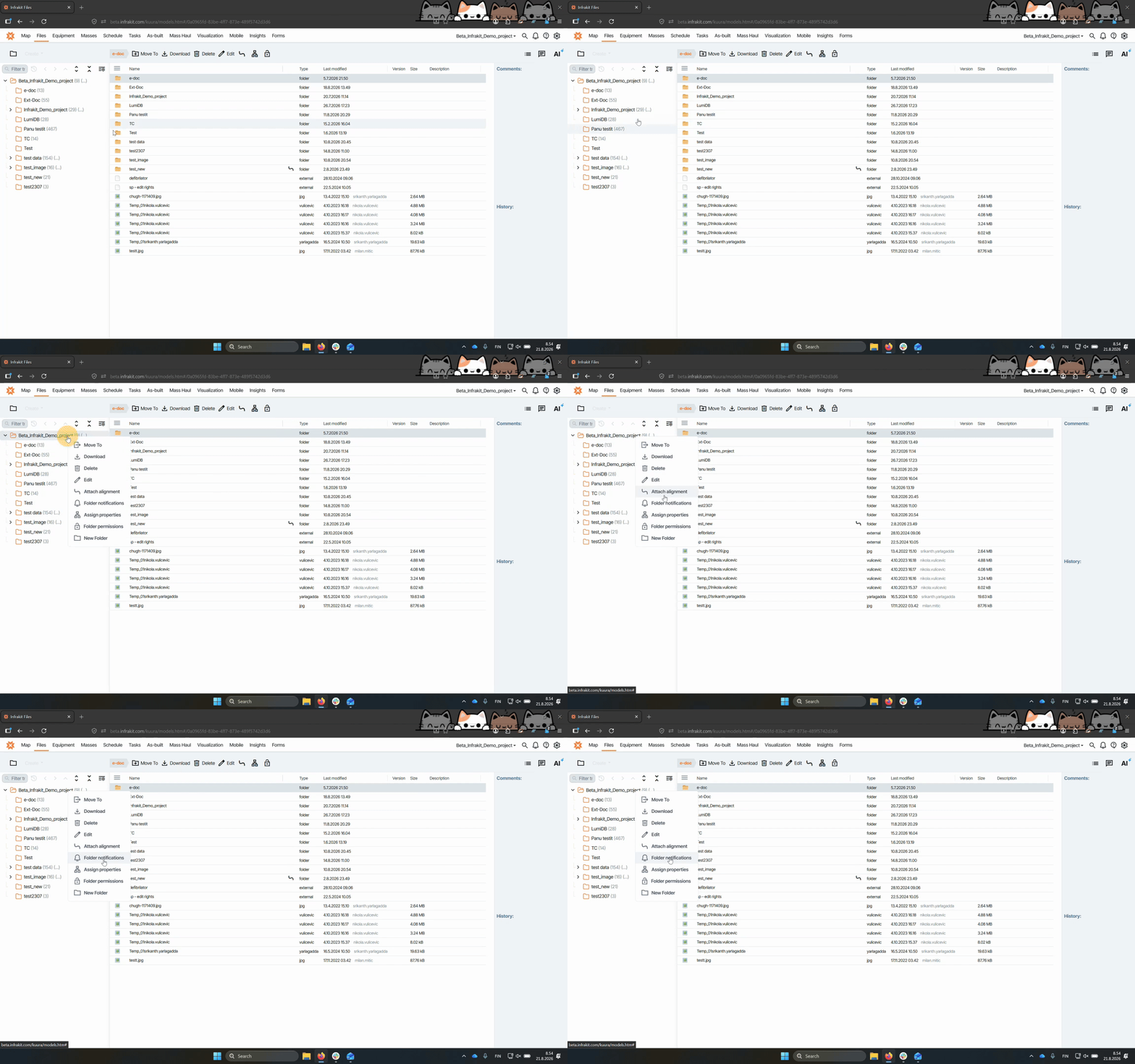
Step 4: Choose Notification Type
You can choose between three options:
Email subscription: Receive a detailed daily digest of all files and folders changed.
In app notification: Get a notification behind the bell icon showing the number of files changed during the day.
Include subfolders: Optionally include all current and future subfolders in the subscription.
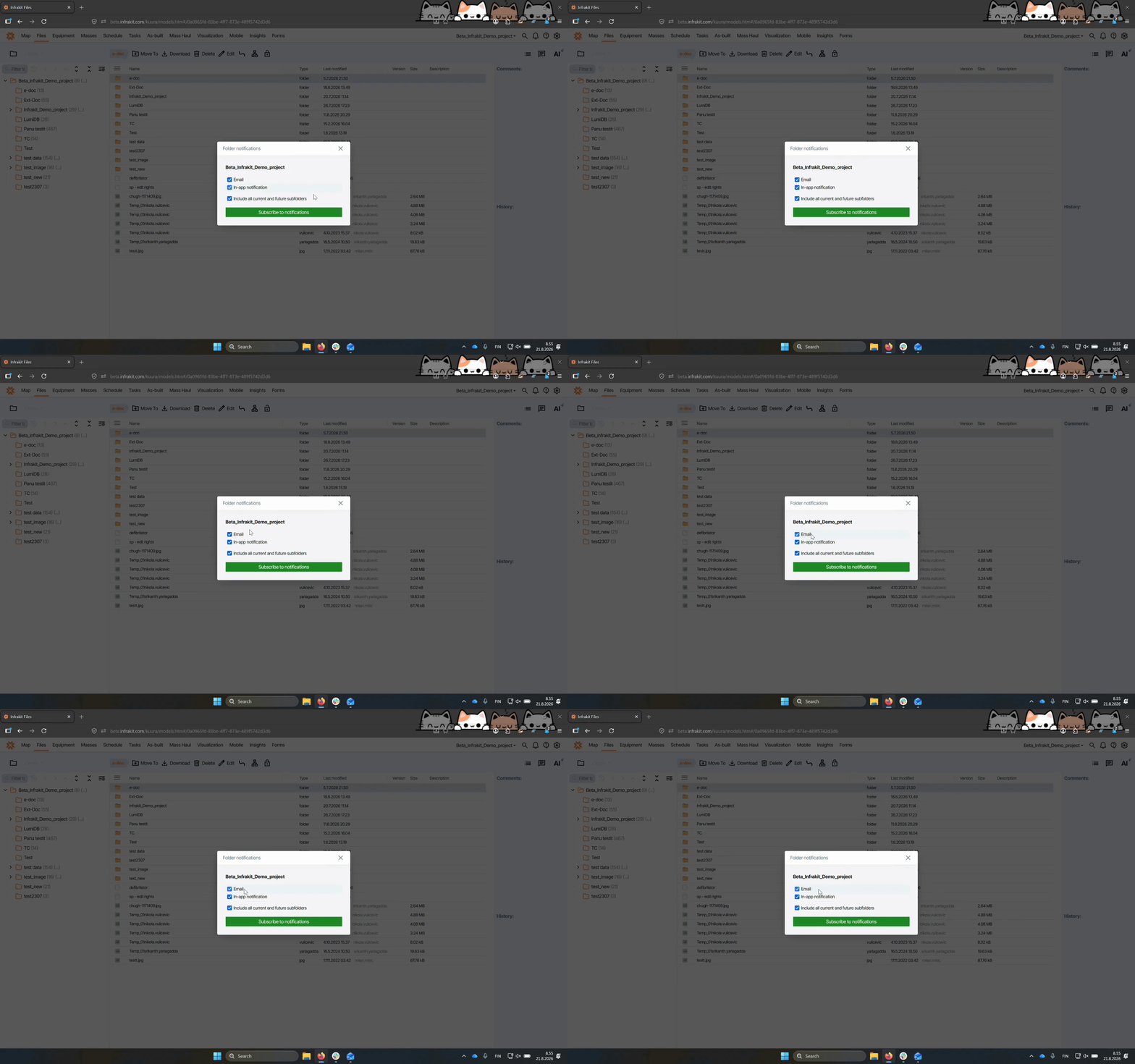
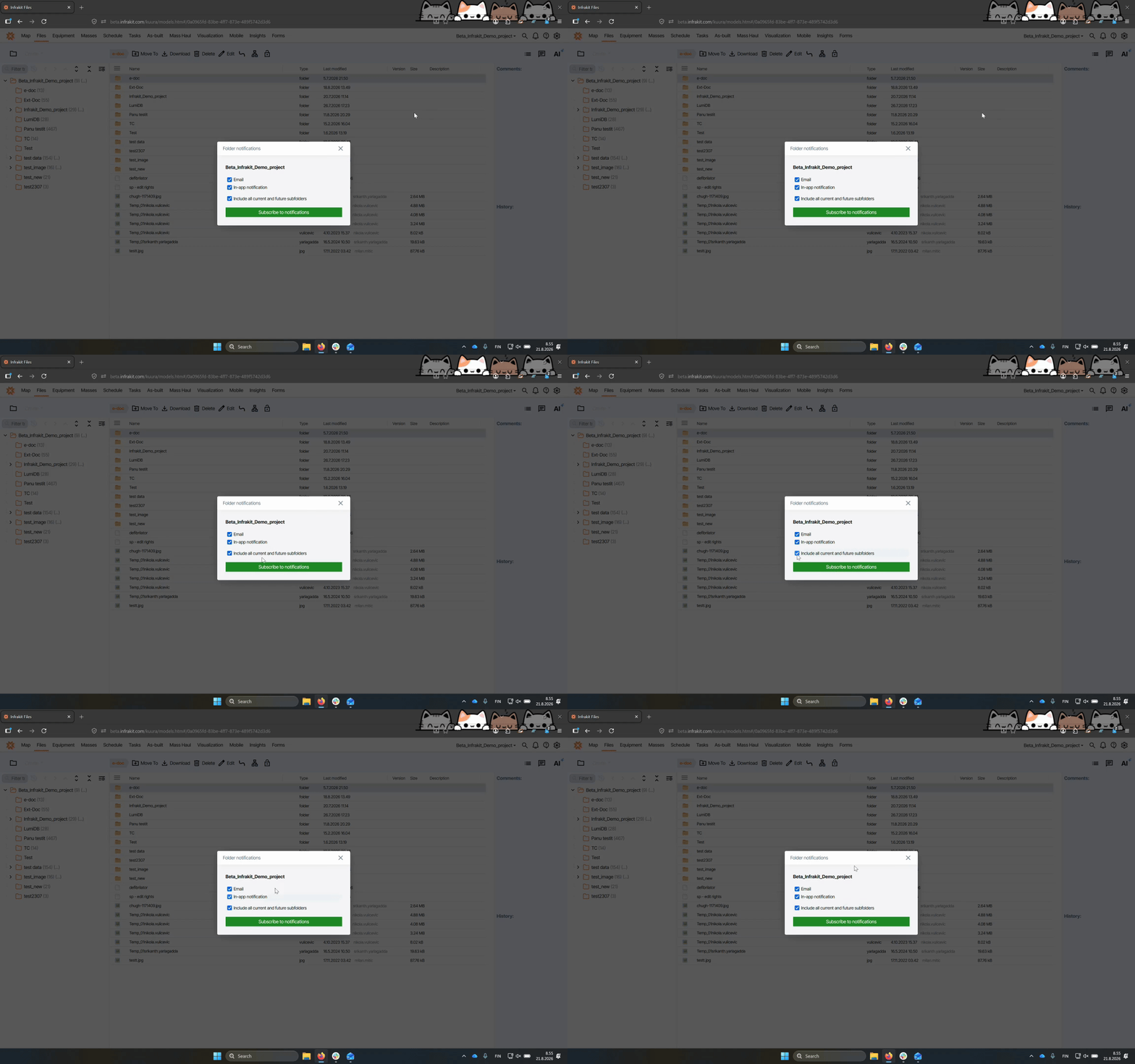
Step 5: Subscribe to Notifications
After selecting your options, click the Subscribe to notifications button. You will see a confirmation that the operation was completed successfully.
Step 6: Manage Existing Subscriptions
If you return to the folder and select Folder Notifications again, you can change your options, save changes, or unsubscribe. All notifications are sent at 6:00 Finnish time as a digest, and in-app notifications appear behind the bell icon.
Email digests are sent once a day at 3 AM Finnish time. You need to subscribe to each folder individually for every project you want notifications from.